
Have you ever felt the need to convert a spreadsheet into a PDF while working with MS Excel? No wonder this utility helps users conveniently share and print the document. However, transforming Excel to PDF can sometimes disrupt the layout if the orientation is a portrait by default. This is not ideal for accommodating wide tables or heavy data sheets.
Changing to a landscape orientation ensures your content looks professional and remains readable. This article explores 3 reliable methods for converting Excel files to PDF in landscape orientation.
Why Convert Excel to PDF in Landscape?
Excel files are known for their ability to handle vast data, which is often displayed across multiple columns. When converted to PDF in a portrait layout, important data may get cut off or appear cluttered. Provided next are some of the reasons why users might feel the need to change the format from Excel to PDF:
- Enhanced Readability: Wide datasets, especially those with multiple columns, fit better on a landscape page. This format reduces the need for excessive scrolling or zooming.
- Professional Appearance: Landscape mode prevents awkward page breaks, misaligned columns, and formatting inconsistencies that can occur in portrait layouts.
- Consistency in Sharing: A landscape layout ensures that all data remains properly aligned, reducing the risk of users having to manually adjust their view or reformat the document for better readability.
Discussing Unique Methods to Convert Excel into PDF
Excel files are known for managing vast amounts of data, often organized into multiple columns. Let us explore the unique methods that provide users the ability to change the format from Excel to PDF in landscape orientation:
Method 1. Using Microsoft Excel's Built-In Features
Microsoft Excel provides a straightforward way to save your spreadsheets as PDFs with the page set to landscape orientation. With this built-in method, users can save the document directly from the interface into different formats including PDF. To learn how to execute this technique, read the steps mentioned below:
Step 1. Change Orientation to Landscape
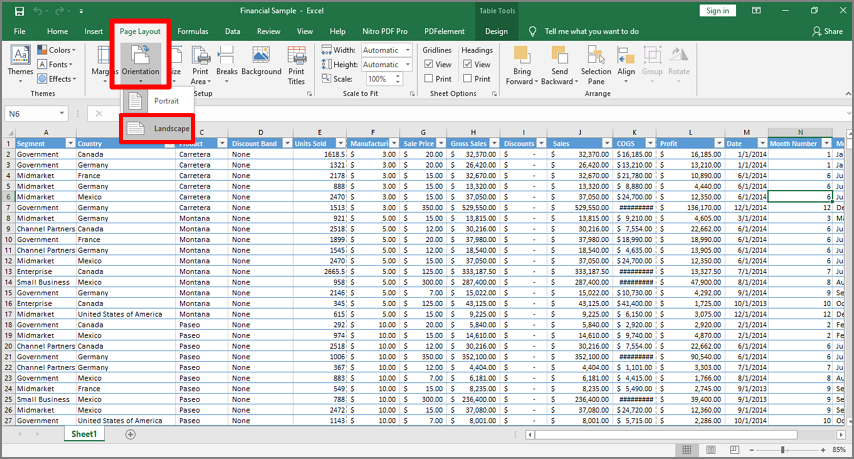
Start by launching Excel on your device and open the spreadsheet within the interface. Next, expand the “Page Layout” ribbon and locate the “Orientation” option. Expand it by clicking on it and selecting the “Landscape” option.
Step 2. Save as PDF
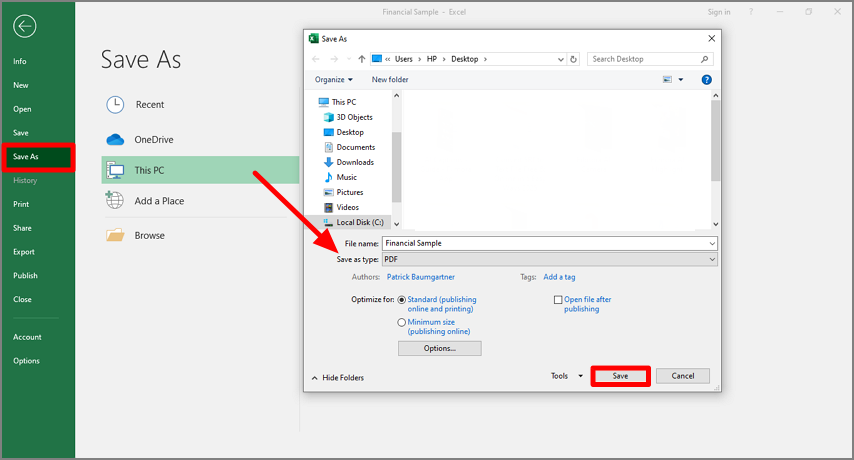
Next, head to the “File” menu and press the “Save As” button from the options provided. Next, choose “PDF” from the “Save As Type” option in the following dialogue box. Once done, hit the “Save” button to convert the spreadsheet into a PDF file.
Note: However, if your spreadsheet requires advanced customization or adjustments after conversion, this method may not suffice.
Method 2. Using Wondershare PDFelement
Wondershare PDFelement allows greater flexibility when converting Excel files to PDF. This tool not only lets you save files in landscape orientation but also provides options for refining your PDF after conversion. The dedicated “Rotate” function allows users to rotate the page clockwise as well as anti-clockwise. This enables them to adjust misaligned pages and customize the viewing experience.
After converting an Excel file to PDF, PDFelement allows further editing, including adjusting text, resizing tables, and adding annotations. If you are working with multi-page PDFs, this platform allows bulk page rotation, saving time and effort when organizing extensive datasets. To learn how to use this tool for Excel orientation change, read the steps mentioned below:
Step 1. Create a PDF From Excel
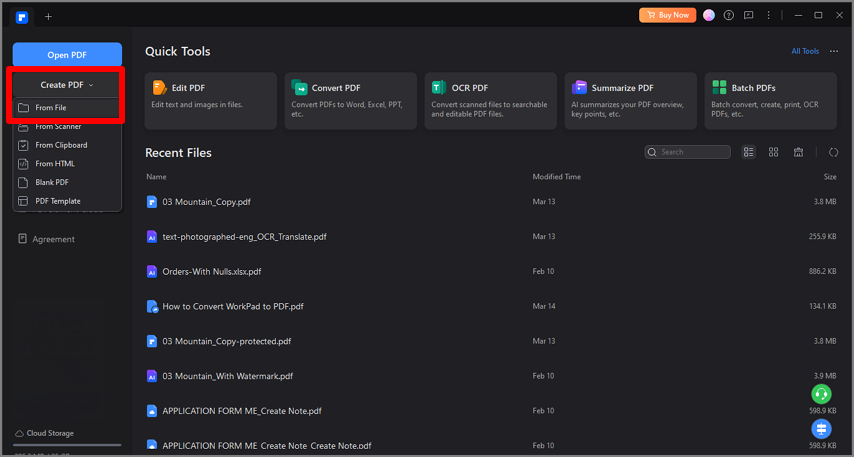
To begin the process, launch PDFelement on your device and click on the “Create” option. Now select the “From File” option from the expanded list. Next, select the Excel file from your device’s folder and import it.
Step 2. Rotate the Page
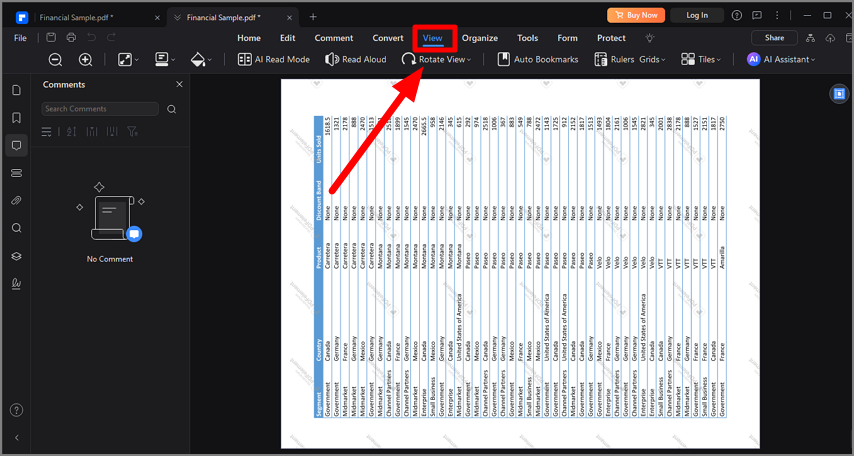
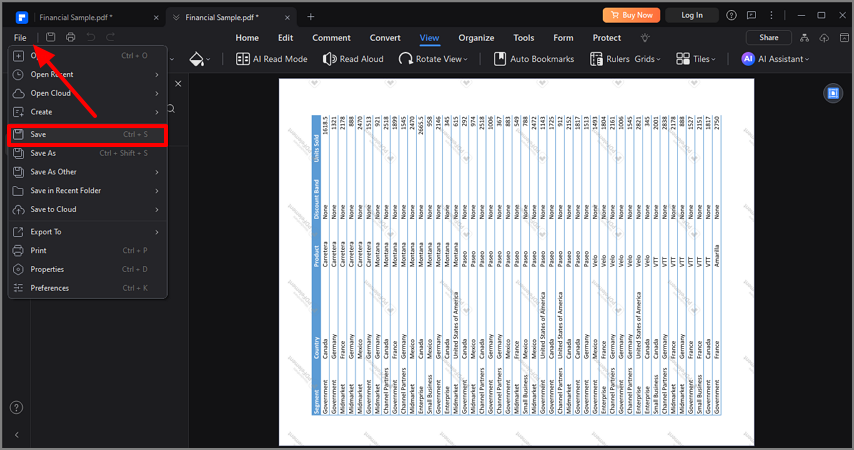
Once the file is imported to the interface, head to the top toolbar and press the “View” option to expand it. Next, locate the “Rotate View” option and choose clockwise or anticlockwise according to your preference by expanding the option.
Step 3. Save the Document
After the sheet orientation is changed, click the “File” option and choose the “Save” button to save the converted document to your device.
Pros
Edit PDFs post-conversion: Users get the ability to modify text, adjust formatting, or combine PDF pages using this efficient tool.
Handle complex spreadsheets: The platform has the ability to handle and fit large datasets onto one page using scaling options.
Cons
Requires software installation, which may not be ideal for users seeking quick, one-time solutions.
Method 3. Using Online Conversion Tools
If you prefer not to install additional software, online converters offer a fast and accessible alternative. One of the best tools to convert Excel to PDF is Smallpdf, which provides file conversion for free without signing up with your email. Furthermore, your files are secured while using this platform because this tool removes files permanently after one hour. Let's have a look at the steps to convert Excel into PDF using this tool:
Step 1. Upload the Excel File
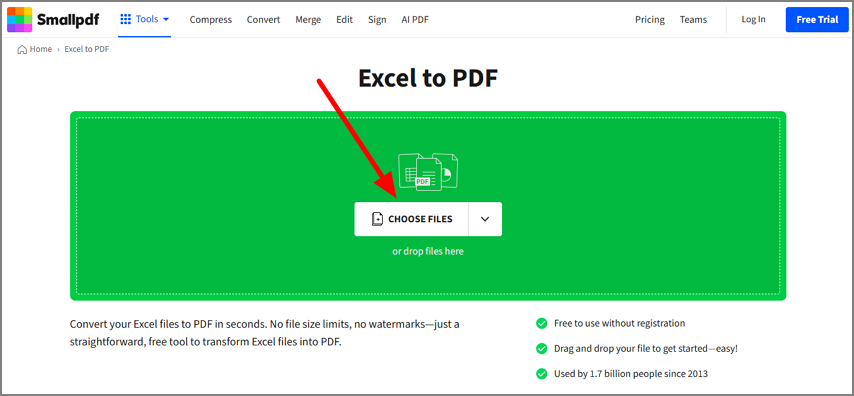
Access the tool in your browser and open the “Excel to PDF” section for file conversion. After that, hit on “Choose Files” to upload a file from your device.
Step 2. Rotate the File
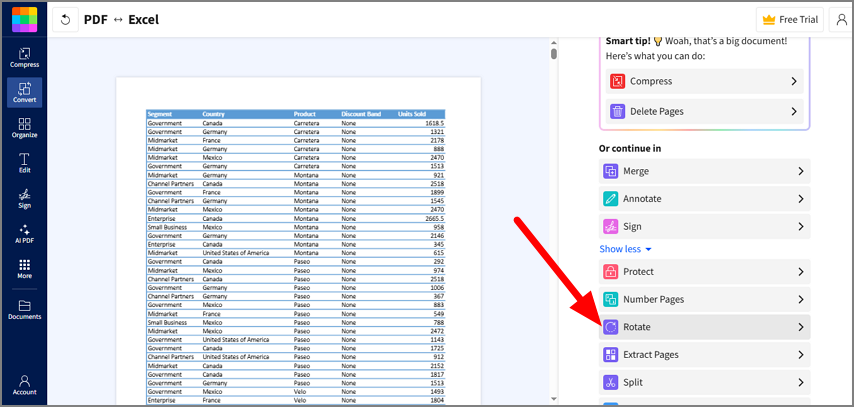
Once your file is uploaded, it will automatically transform into a PDF, then hit the “Rotate” option to enter the next interface.
Step 3. Choose Orientation and Finish
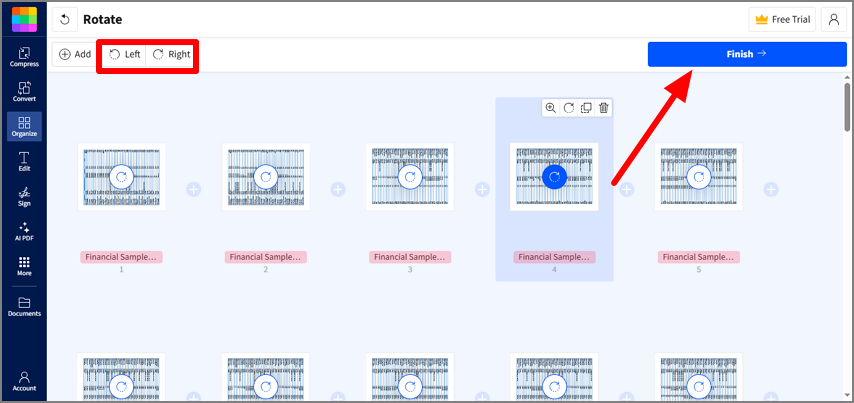
Now choose the orientation from the options above the page and when you are satisfied with the file layout, tap on the “Finish” button for the completion of the process.
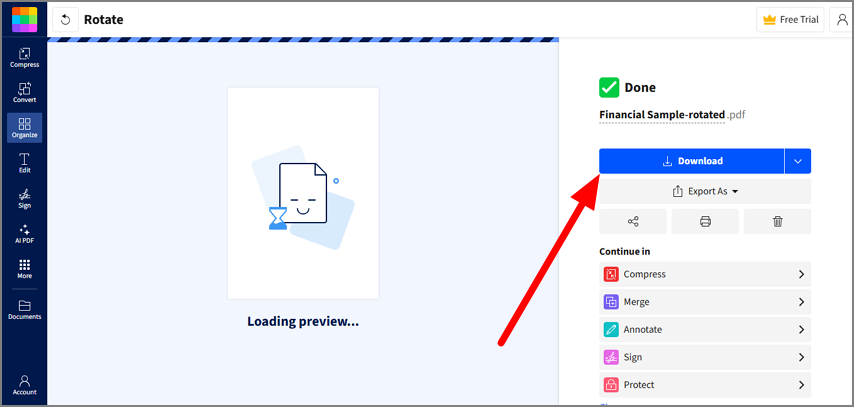
Step 4. Download the File
Lastly, click on the “Download” button by choosing your desired format and save the file to your device for future use.
Things to Keep in Mind:
- Ensure the platform is secure to prevent unauthorized access to your data.
- Some tools may lack advanced editing features available in software like PDFelement.
Which Method is Right for You?
Now that we understand the different ways to convert Excel into PDF in landscape orientation, it is essential to choose the methods that suit your needs. Consider factors of formatting accuracy and ease of use while selecting the right tool for your requirements:
- Microsoft Excel is excellent for quick, one-off tasks with no significant customization required.
- Wondershare PDFelement is perfect for professionals handling complex Excel sheets who need additional control over formatting and editing.
- Online tools like Smallpdf are convenient for users seeking a fast solution without installing new software.
Conclusion
In conclusion, we have explained how to convert Excel to PDF in landscape. Whether you are sharing reports or printing data, landscape ensures clarity and impact. However, if you want to know about the best tool, Wondershare PDFelement stands out at the top. To utilize its various functions, you can download Wondershare PDFelement and experience unparalleled flexibility for all your PDF needs.