
In today's digital world, managing multiple files can quickly become overwhelming. Sending a collection of reports, design drafts, and invoices individually is time-consuming and disorganized. Additionally, by converting an entire folder into a single PDF, you ensure seamless organization, easy sharing, and secure archiving.
PDF helps users maintain files, providing protected content and less risk of missing files. Furthermore, this blog will guide you through two practical methods to convert files in a folder to PDFs on a Mac using Wondershare PDFelement and the built-in Preview application. Whether you’re organizing your financial records, preparing documents for a client, or simply tidying up your digital workspace, you’ll find these solutions both efficient and beginner-friendly.
Why Convert Entire Folders to PDF?
Before we look at the how, understanding the why is critical. PDF is one of the most versatile and stable formats available today. You might want to convert an entire folder to PDFs in these scenarios:
- Archiving Important Documents: Important documents like bank statements are saved in CSV or image formats for easier storage, access, and retrieval.
- Sharing Files Professionally: Sharing files such as business reports or technical documents that should retain their formatting PDFs ensures they look neat and professional.
- Ensuring Compatibility: PDFs maintain consistent fonts, layouts, and structure across all devices, ensuring a consistent and readable document.
Top Methods to Convert Files on Your Mac
Now that we know why PDFs matter, let's explore the step-by-step guides for converting files within folders to PDFs.
Method 1. Convert Files Using Wondershare PDFelement for Mac
Wondershare PDFelement is a powerful, user-friendly tool designed to streamline PDF creation and management. Its versatility makes it ideal for users looking to efficiently convert multiple files to individual PDFs. Moreover, this exceptional tool lets users convert multiple files to get instant results at once using its batch-processing features. Besides the conversion of folders into PDF documents, you get the ability to edit PDF links, text, forms, annotations, and even signatures. PDFelement can change scanned PDFs into editable PDFs with its OCR features. Let's have a look at the provided steps to convert files using Wondershare PDFelement for Mac:
Step 1. Access PDFelement and Batch PDFs
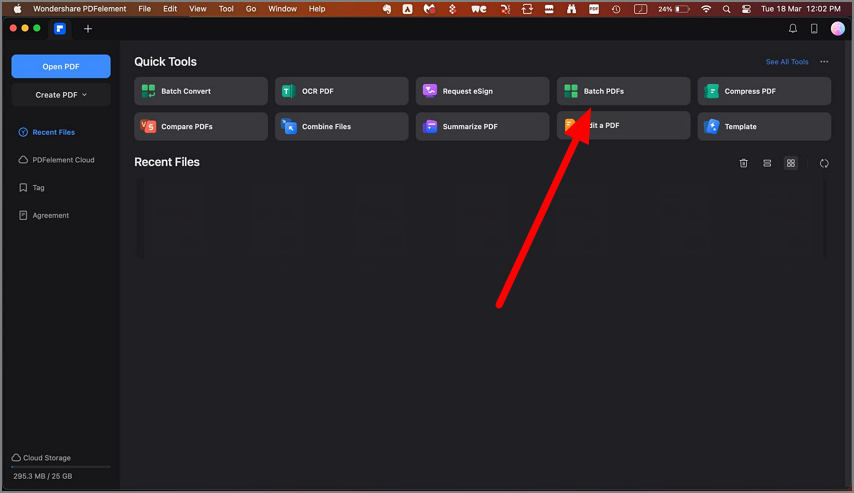
First, download the tool to open it on your desktop, then click on the “Batch PDFs” from the interface menu to start the conversion process.
Step 2. Select Batch Create From the Options
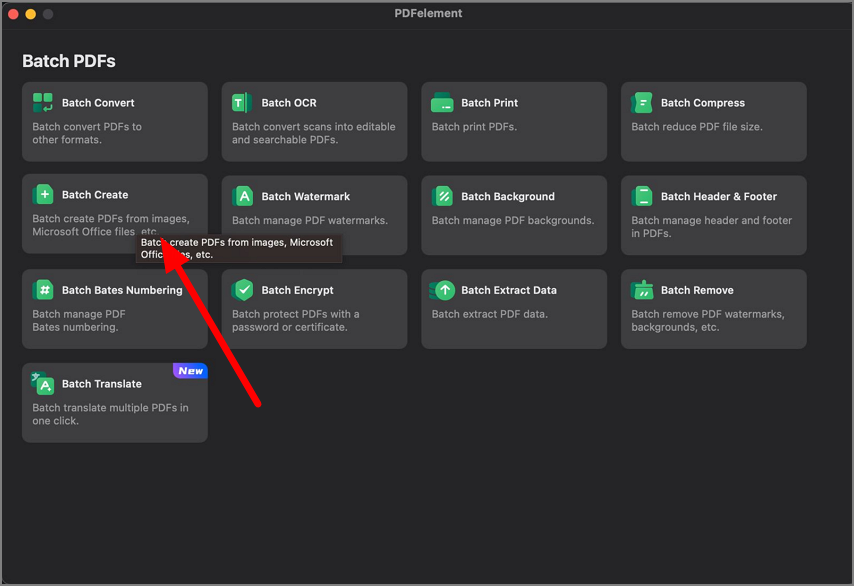
Moving forward, click on “Batch Create” from all options to generate PDFs of multiple files at once.
Step 3. Select Add Folder and Adjust Page Size
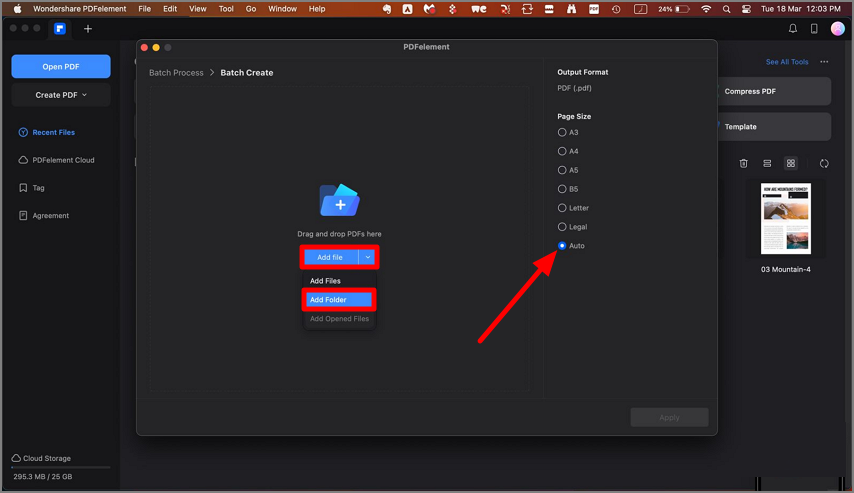
In the following interface, extend the “Add File” drop-down menu to select “Add Folder” from your device. Next, specify the “Page Size” by choosing your required option from the list.
Step 4. Select the Folder to Initiate the Conversion
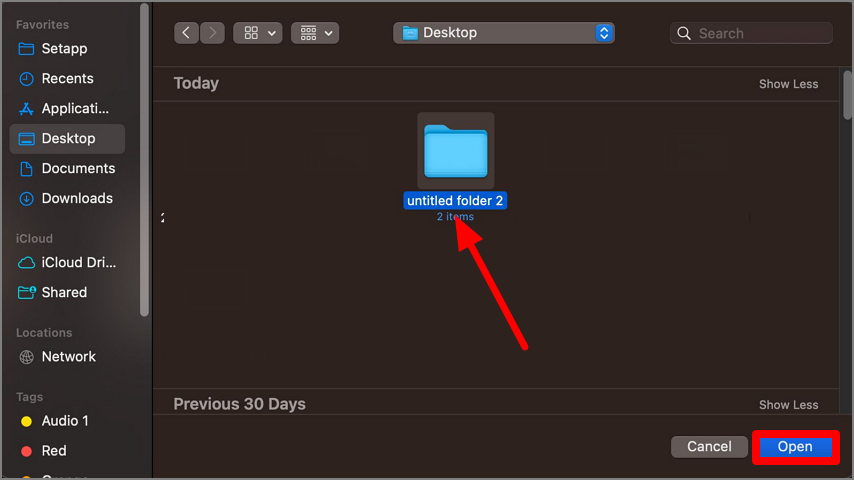
Afterward, choose your required folder from your device and hit the “Open” button to start the process of file conversion.
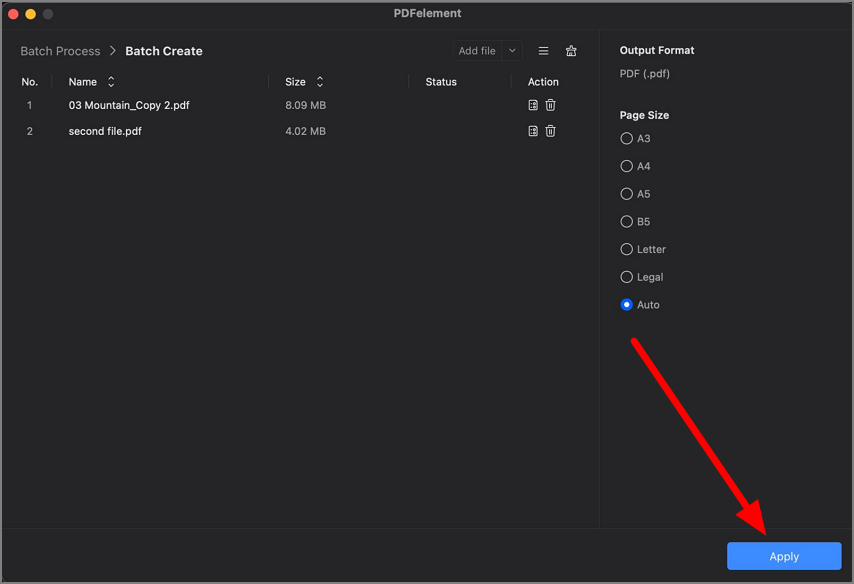
Step 5. Click Apply to Convert File into PDF
In the last step, when your files appear on the main screen, hit the “Apply” button to complete the conversion procedure of files to PDFs.
Advantages of Using PDFelement:
- Summarize PDF: Users get the ability to summarize PDFs to get important points from their files.
- PDF Grammar Check: It lets you make your content error-free by checking grammar mistakes, spelling, and symbol errors.
- Flexible Output Options: Supports a wide range of file types, including Word, Excel, images, and more.
- PDF Security: This tool provides password security features to protect the sensitive and private data of the PDF files.
Method 2. Convert Files Using Mac’s Built-in Preview Application
For users who prefer to stick with native macOS tools, the Preview app offers a reliable method to convert files to PDFs. While it might not provide the advanced functionalities of PDFelement, Preview is great for basic file conversion needs. This tool supports multiple formats to convert files in various formats such as PDF and XBM. Walk through these mentioned steps that guide you in file conversion to make your multiple tasks easier:
Step 1. Open the Folder in Preview
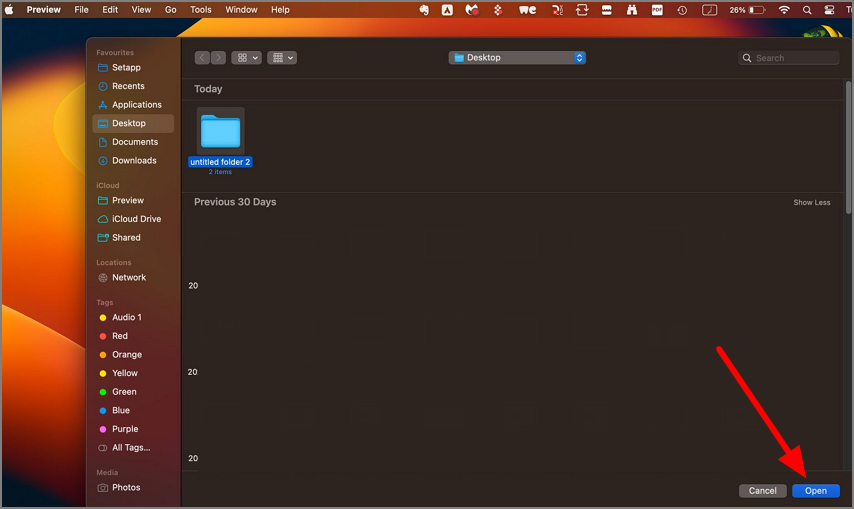
In the first step, open the Preview app on your device and access the folder from your desktop to convert the folder into PDF using the “Open” button.
Step 2. Insert Pages from the Folder
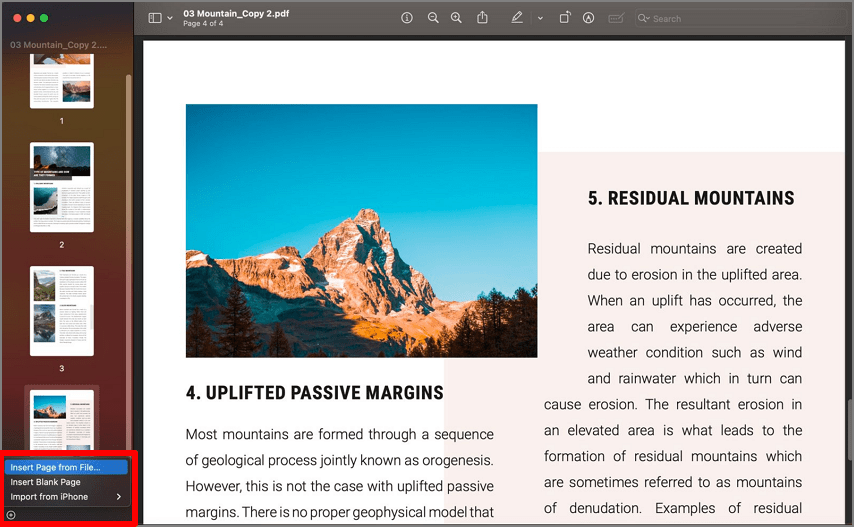
In the following interface, tap on the “+” icon to extend the options list and choose “Insert Page From File” to insert a file from your device.
Step 3. Select the Folder to Start Conversion
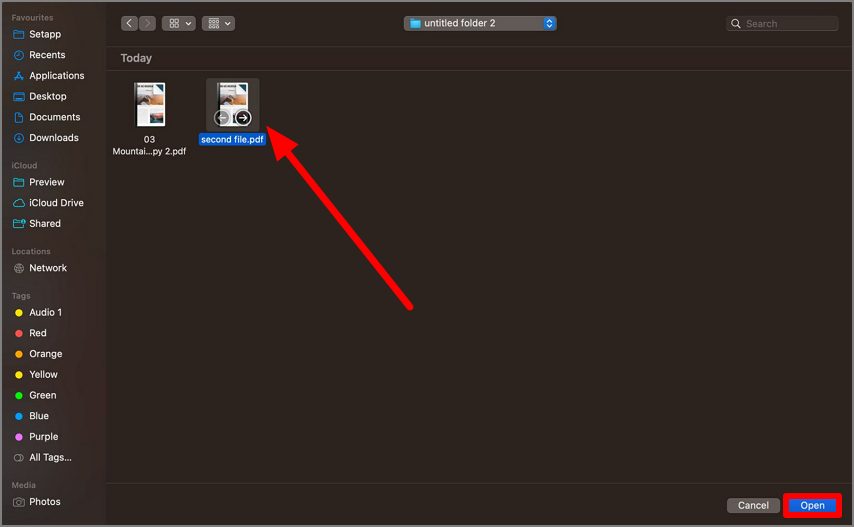
Moving forward, select the folder file to insert it in the preview app and hit the “Open” button to start the conversion process.
Step 4. Save the PDF File
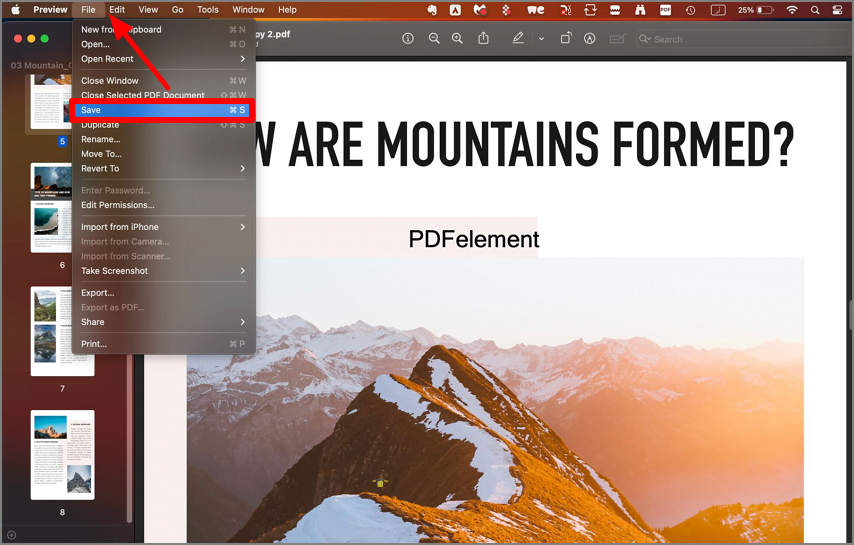
After that, when your desired results appear, go to the “File” tab in the menu bar to hit the “Save” button.
When to Use Preview:
- When you have to convert a small number of files, utilize the Preview app.
- It helps users in executing simple formats like images and text documents.
- You can use it for simple work and don’t need advanced functionality like batch processing and detailed customization.
Benefits of Using Wondershare PDFelement Over Preview
While Mac’s Preview app is suitable for basic tasks, Wondershare PDFelement offers several advantages for professional and complex document needs:
- Streamlined Batch Conversions: PDFelement allows users to convert entire folders at once to save their time.
- Support for Multiple Formats: Using this tool, they can access a wide range of file types, including Word, PowerPoint, Excel, HTML, and more.
- Advanced Features: Beyond conversion, you gain access to annotation tools, secure password protection for documents, and form management.
- Higher Output Quality: PDFelement preserves intricate layouts, graphics, and text formatting, ensuring seamless results.
Unlock More with PDFelement
PDFelement provides amazing features for batch PDF conversions. Let's explore what it is offering to its users:
- Annotation Tools: Using these features, users gain the ability to add comments, highlights, and other markups to the PDFs best for taking notes.
- Security Features: PDF security attributes are crucial to prevent documents that allow authorized users can access the documents.
- Organization Options: It lets you organize and store large amounts of data in one PDF by merging smaller sections of PDFs.
- Form Management: You can create, edit, and extract data from interactive PDF forms to structure the data collection.
Conclusion
To conclude, converting an entire folder of files into individual PDF documents doesn’t have to be a daunting task. This article has walked through cutting-edge tools for professional batch conversion with advanced customization options.
If you’re managing large volumes of files or require precision and efficiency in your PDF work, Wondershare PDFelement is the superior choice. Its intuitive interface, advanced features, and impeccable output quality make it worth the investment. Make the switch to effortless PDF management today. Download Wondershare PDFelement and see the difference for yourself!