
Do you have handwritten notes, recipes, or documents you wish were in digital, editable formats? Converting handwriting to text has never been easier, thanks to recent technological advancements.
Using tools like Optical Character Recognition (OCR) software, mobile apps, or online services can save time, reduce clutter, and make handwritten information more accessible. This article will guide you through 4 effective methods to convert handwriting into text, ensuring you find the right approach for your needs.
In this article
Why Convert Handwriting to Text?
Whether you're a student, professional, or someone who loves writing down ideas, handwriting often plays a significant role in note-taking. However, handwritten documents can be challenging to organize, edit, or share. Converting handwriting into a digital format offers several advantages, a few of which are mentioned below:
- Accessibility: With the help of digital files, you can easily organize and access your documents from anywhere.
- Ability to Make Edits: Users get the ability to edit and improve text by using digital text functionality without starting from scratch.
- Convenient Sharing: It helps you send documents via email and upload them to a shared cloud service.
- Preservation of Content: Handwritten notes fade over time; however, digitizing them keeps your records intact.
Scanning Handwriting to Text with OCR Tools
OCR (Optical Character Recognition) technology enables you to convert scanned images of handwritten text into editable digital text. Refer to the following methods to learn how to convert your handwriting to text:
Method 1. Using PDFelement For Scanning Document
If you want to convert handwritten notes into editable text under the easiest options, use Wondershare PDFelement. Its digital methods and AI features allow you to customize your written data as per your needs to make it accessible and usable multiple times. By using its standard features like OCR, you get the ability to recognize scanned text and handle all types of PDFs effortlessly. Furthermore, its editing tools help you crop, translate pages, and edit text conventionally to transform your initial data. The OCR feature allows users to select their desired language from multiple language options. Additionally, using page range, you can choose all pages or one page to convert the document into text. Walk through the mentioned step-by-step guide to convert PDF into text for easier editing:
Step 1. Connect Your Scanner To Scan the Handwritten Document
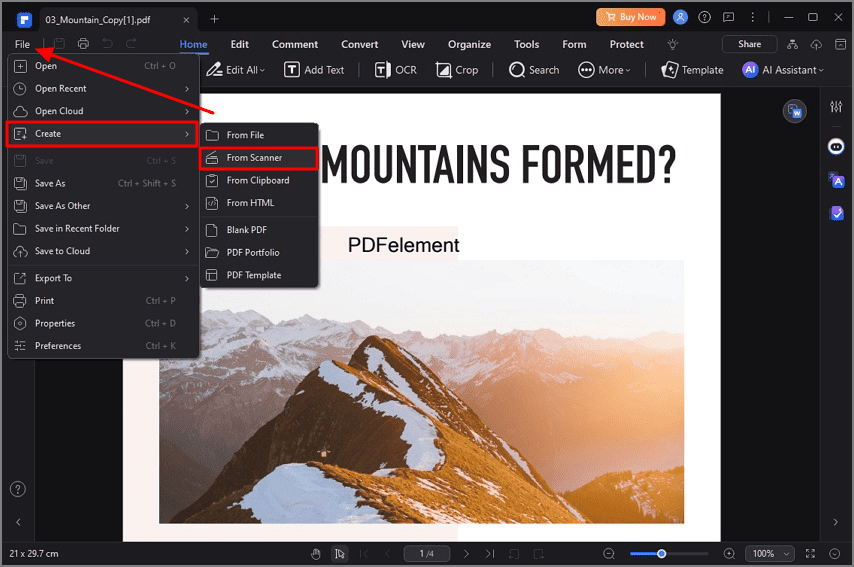
In the first step, connect your scanner to your computer properly and launch PDFelement to begin the scanning process. After that, click on the “File” option to expand the drop-down menu, and hit the “Create” button to choose the “From Scanner” option.
Step 2. Perform OCR on Scanned Data
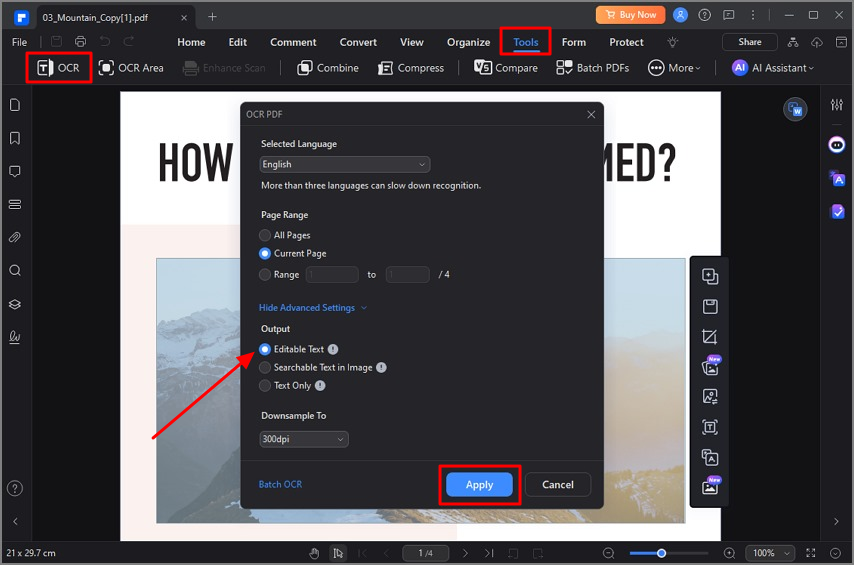
Moving forward, tap on “Tools” and select “OCR” from the toolbar to convert your scanned image to text. Finally, choose the option “Editable Text” from the OCR PDF dialogue box and select your preferred settings to hit the “Apply” button and generate text.
Why Use PDFelement?
- It extracts text from documents and allows you to edit it conveniently.
- This tool can process and convert documents in various formats, including .docx and .xlsx.
- Using PDFelement's advanced algorithms, you can convert data in more than 25 languages.
Pro Tip: If you scan often, the batch processing mode can save significant time by handling multiple files at once.
Method 2. Using Mobile Apps for On-the-Go Conversion
For convenience and mobility, mobile apps are a go-to option for converting handwritten documents to PDF for professionals, businesses, and students. Provided below are some mobile conversion apps that help you convert handwriting into PDFs for enhanced accessibility.
App 1. Microsoft Office Lens [iOS/Android]
To get superior scanning outcomes, utilize Microsoft Office Lens, which offers handwritten conversion into PDF text. This tool allows users to extract text in more than 30 languages to repurpose their required content. Let's go through the steps to extract text from handwritten notes and convert it into a PDF document:
Step 1. Scan and Edit
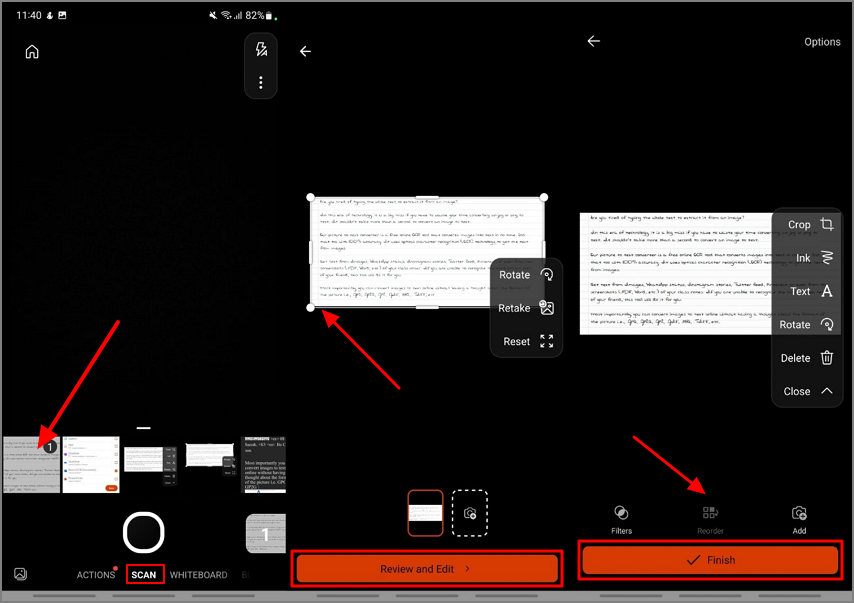
Download the app on your phone and scan the handwritten image by choosing the picture from the “Scan” section. Afterward, hit the “Review and Edit” button to make edits if needed, then hit the “Finish” button to complete the process.
Step 2. Save the Results
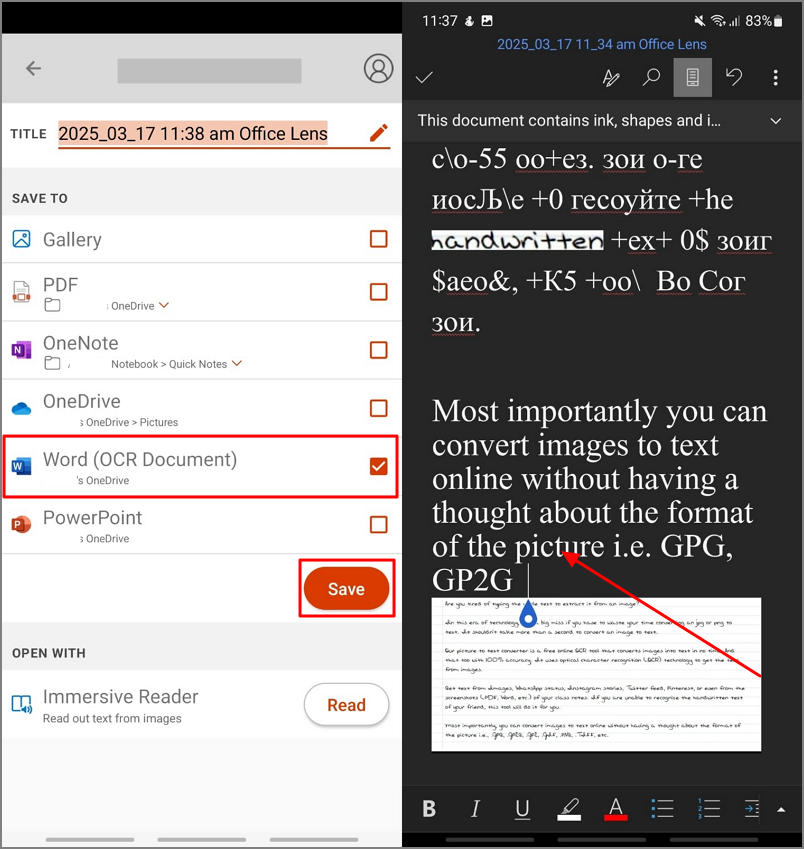
In the following interface, tap on the Word (OCR Document) checkbox to save the generated outcome. Lastly, your results will open as a Word file, and you can check them to finalize them.
App 2. CamScanner [iOS/Android]
When organizing your handwritten data, consider using CamScanner for efficient results. It lets you convert any document into a PDF or Word file in a few simple steps. Read the mentioned steps to get instant conversion of handwritten documents into text within CamScanner:
Step 1. Import or Capture Images
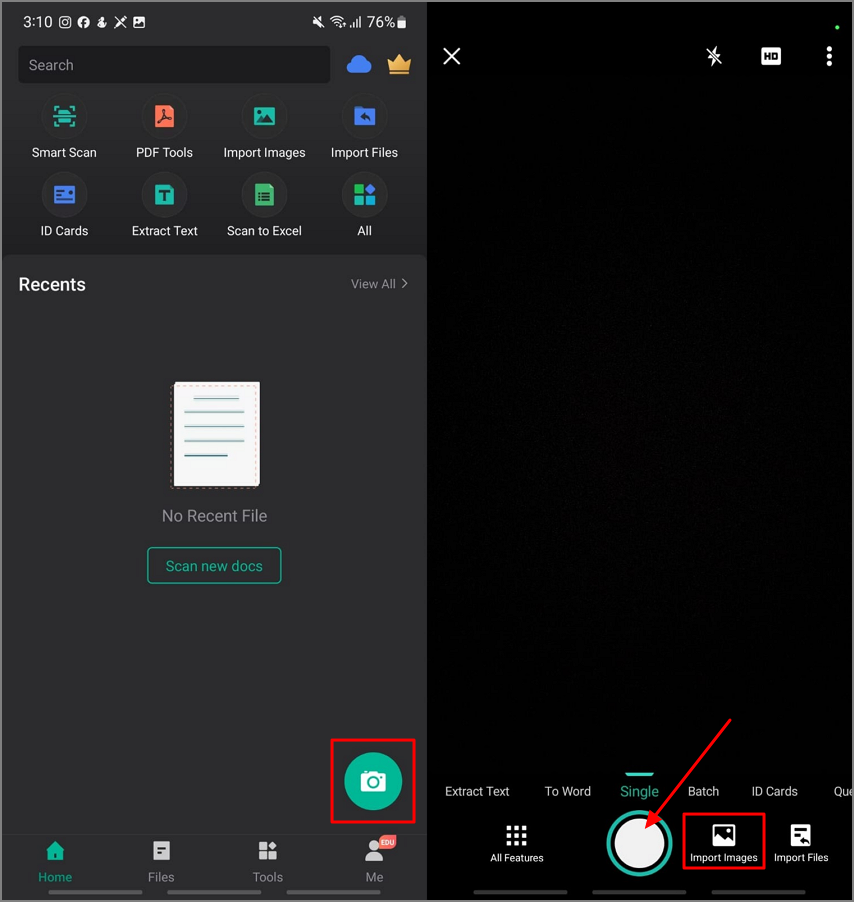
After downloading the application, click on the “Camera” icon to go to the following interface. Hit the “Import Images” button to add an already existing media from your device. Conversely, utilize the “Circle” icon to capture images in real time and extract text from handwritten notes.
Step 2. Extract and Share Text
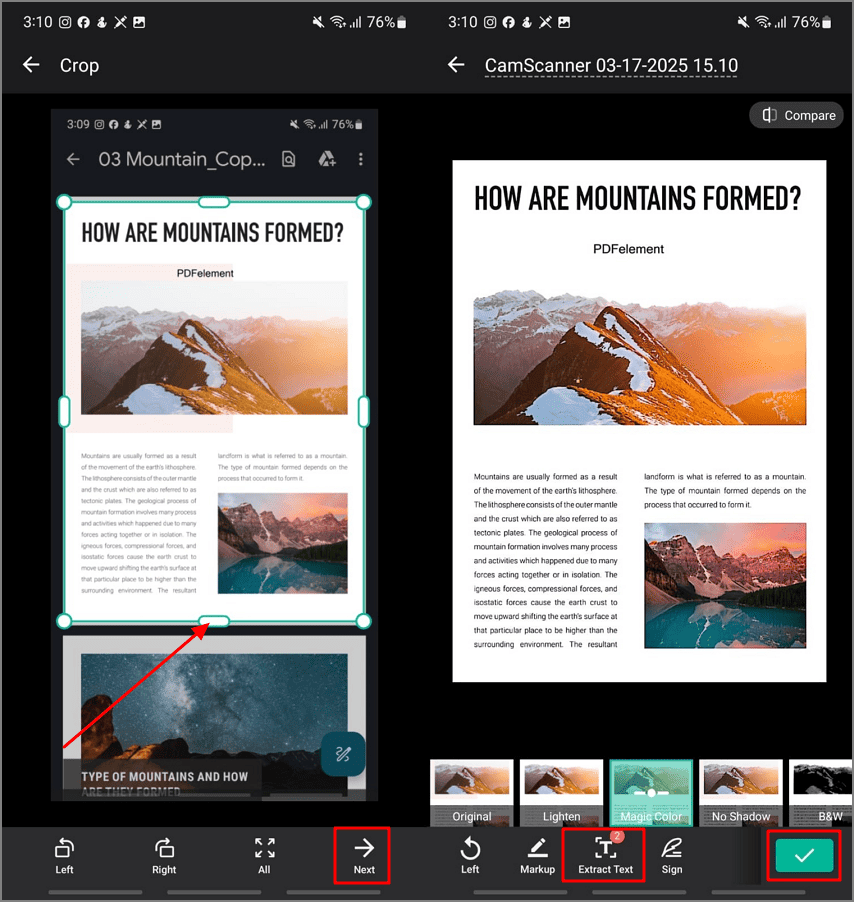
After uploading the file, press “Extract Text” to convert text from the image, then edit the content as you require. Moving forward, hit the “Tick” icon to share the document as PDF or Word to save it for later use.
App 3. PDFelement for Mobile [iOS/Android]
With the help of this exceptional mobile solution, users can convert their multiple documents into various formats, including PDFs and images. It helps in transforming files into editable and searchable documents in a few taps. Let's review the process of extracting text from scanned PDFs using the PDFelement mobile application:
Step 1. Download the App and Import File
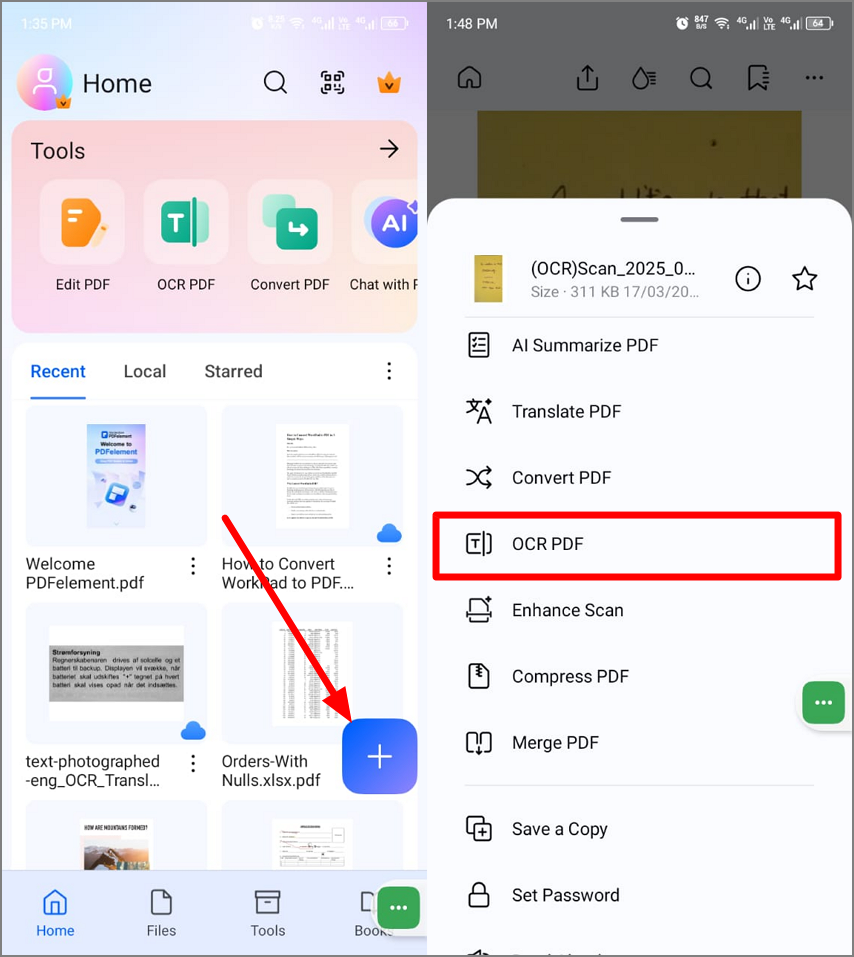
First, open the downloaded app on your mobile and press the “+” icon to import a handwritten file. After the file is added, hit the “OCR PDF” from the drop-down menu to select the settings.
Step 2. Accomplish the OCR Across PDFelement App
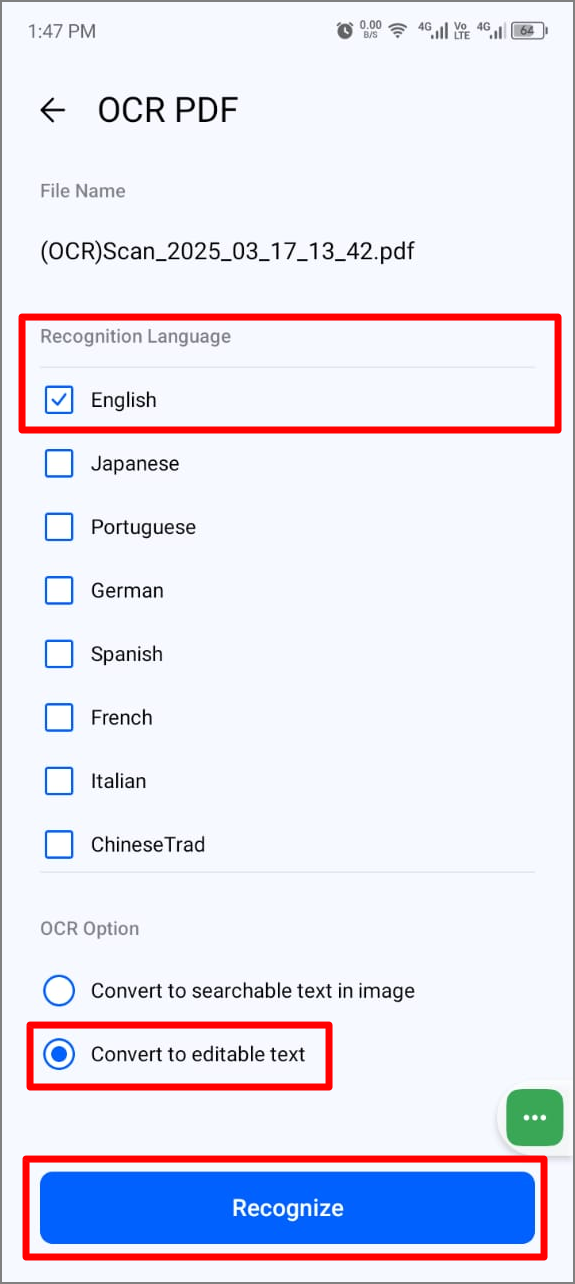
In the next step, write the name of the file in the “File Name” section, then choose your required languages from “Recognition Language.” Finally, tap on the “Convert to editable text” radio button and hit the “Recognize” button to start the procedure.
Step 3. Review and Save the Outcomes
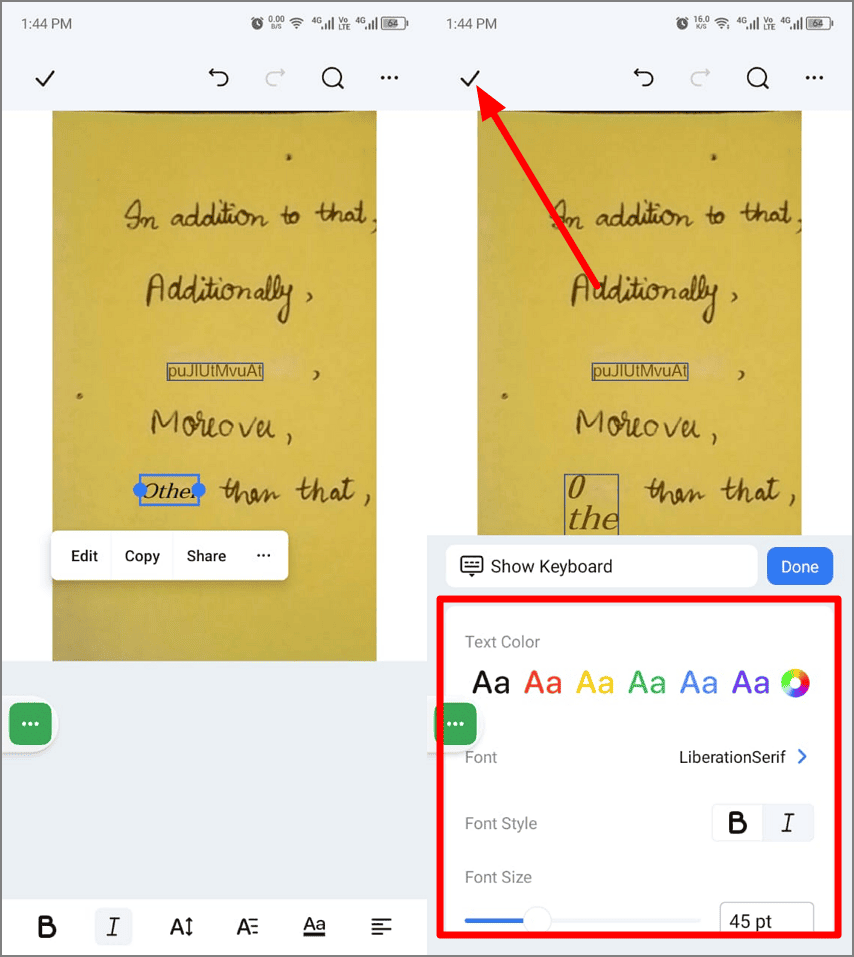
Once the results are generated, customize them by hitting the edit button to use various fonts and styles. Lastly, if you are satisfied, hit the “Tick” icon to save the outcomes for future purposes.
Method 3. Online OCR Services for Quick Access
Important documents require editing and extracting text, but extracting text or improving it manually will be time-consuming and take a lot of effort. For this purpose, online OCR tools extract data instantly using scanned images and documents. Let's explore some best OCR tools available online that prevent you from manual editing.
1. OnlineOCR
OnlineOCR.net is a free online service that extracts data instantly from images and PDFs. It lets users like students and professionals allowing them to process their tasks by using multiple languages. Furthermore, you can customize PDFs and pictures by converting them into editable text to make editing according to your needs.
Step 1. Upload and Convert
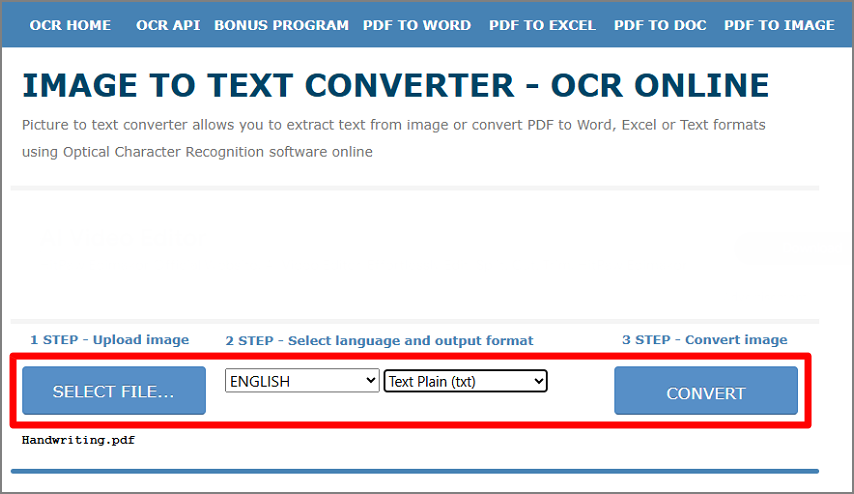
Access the tool in your browser and hit “Select File” to upload a file from the computer. After that, click on “Select Language” to specify your required language of text. Moving forward, choose the “Output Format” in which you want to convert the file and hit the “Convert” button to start the conversion procedure.
Step 2. Download the Extracted Text
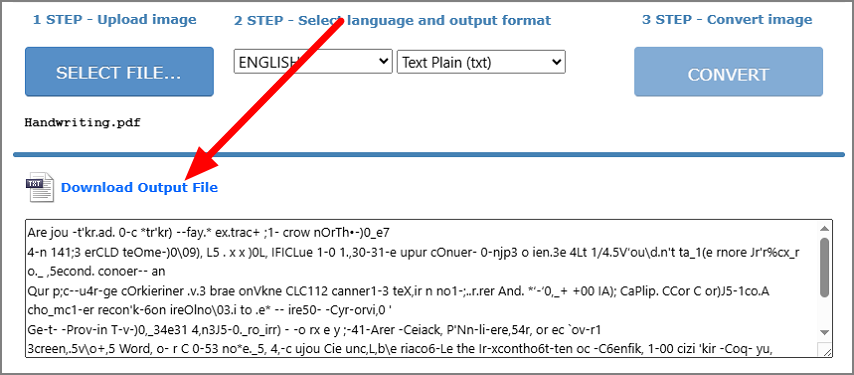
When outcomes appear in the dialogue box, edit them if modifications are needed and click on “Download Output File” to save the extracted text on your device.
2. Google Drive and Google Docs
If you are looking for an online tool that offers premium functionalities for handwritten conversion, try using Google Docs and Google Drive. Using this platform, your data will automatically be converted into text without needing any manual work. Let's walk through the simple steps to extract text from scanned documents:
Step 1. Upload and Open in Google Docs
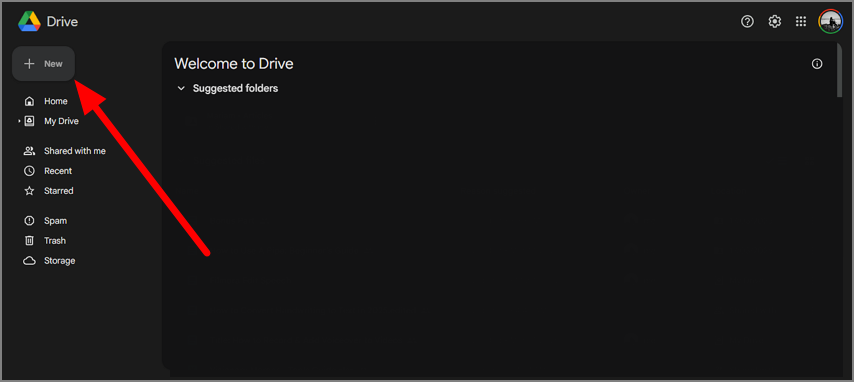
Access Google Drive and hit on the “New” button to insert the handwritten file, then click on the uploaded file to open it with Google Docs.
Step 2. Download the Extracted Text
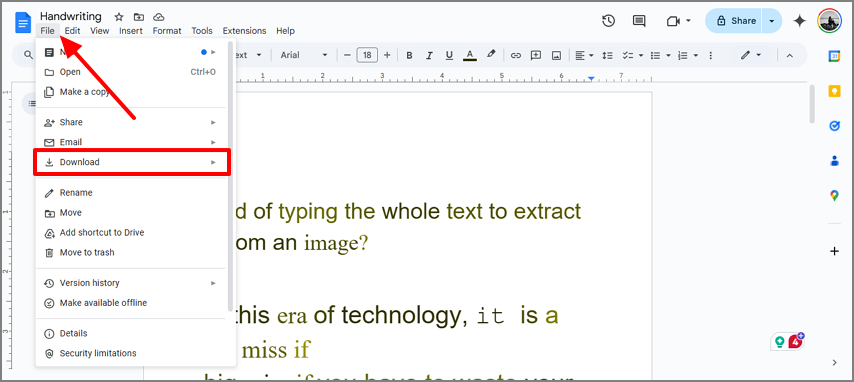
After the appearance of the file in Google Docs, it will automatically extract the text from handwritten notes. You can customize generated results to ensure highly accurate outcomes. Following this, tap on the “File” Tab to open the drop-down menu, and finally, hit on the “Download” button to export results in your desired formats.
Pro Tip: Google Docs supports multiple languages. Don’t forget to review and fine-tune the converted text for errors.
Method 4. Dedicated AI Tools for Handwriting Recognition
While online services are fast and free, they typically have file-size limits or may compromise privacy for sensitive documents. For this, you can use dedicated AI-powered tools available on the internet. Using advanced machine learning and OCR technology, they use multiple handwriting styles to make it searchable and editable. Learn about this AI-powered tool to explore how to convert handwritten notes into text.
AI Handwriting to Text GPT
With the help of this tool, users get the ability to convert their handwritten notes into text from anywhere. These tools utilize advanced and machine learning techniques to convert documents into digital, equitable formats with high accuracy. Go through the provided steps that help you in converting your files into text:
Step 1. Upload and Extract Text
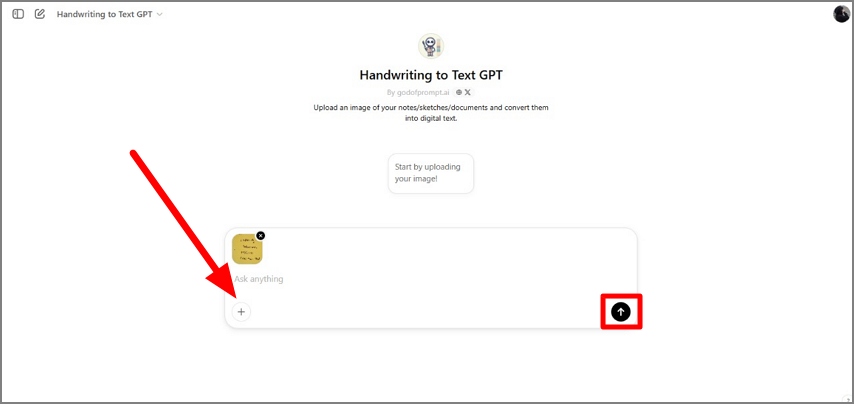
Access the tool from your browser, hit the “+” icon to upload the file, and press the “Arrow” to execute. When a file is uploaded, this tool automatically extracts text from the document.
Step 2. Edit and Share
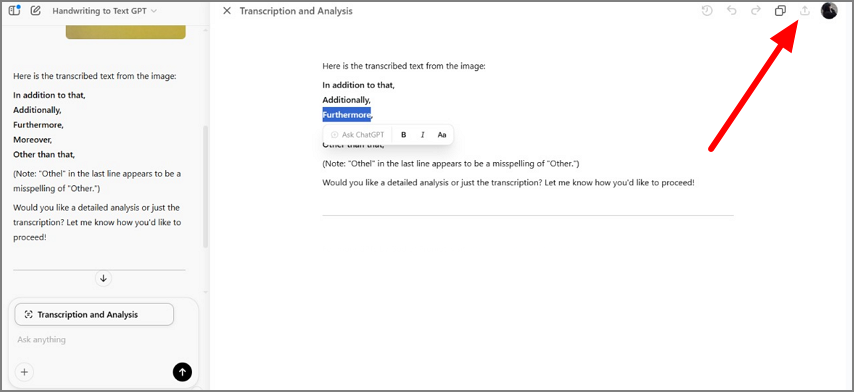
Moving forward, select the text by dragging your cursor to edit the extracted text within the interface. And once you are satisfied with the results, hit the “Share” icon to share it on different platforms conveniently.
Pro Tip: AI-powered converters may involve costs after a trial period but often provide added features like voice-to-text and advanced formatting.
Picking the Right Method for You
After learning about all the methods, it might get easier for you to pick your desired approach. However, with the help of the below-mentioned tips, you get the ability to choose exceptional and accurate tools to convert your documents into text:
- Use scanning and OCR tools (like PDFelement) if you frequently convert handwritten documents and prioritize accuracy.
- Mobile apps help you use their functionalities from anywhere with instant results.
- Leverage online services if you need a fast, free solution for multiple purposes.
- Tap into AI-driven tools for complex scenarios involving challenging handwriting.
Conclusion
To sum it up, with so many tools at your disposal, there’s no reason to stick to handwritten notes in their original format. Streamline your workflow and digitize your notes with OCR tools, mobile apps, and online services. If you are looking for a tool that offers top-notch performance and versatility, try PDFelement to discover how it can simplify your life with its powerful OCR features.