
If you are working on WordPad for a special project and need to share it on different platforms, you might need to ensure the formatting is preserved. Converting WordPad files to PDF is an effective way to solve these challenges, as PDFs offer better compatibility, consistent formatting, and professional presentation for documents.
In this article, we will introduce five easy methods to convert your WordPad files into PDF format. By the end of this guide, you will have all the information you need to seamlessly transform WordPad files into PDF documents.
Why Convert WordPad to PDF?
WordPad typically saves files in formats that might not be compatible across all platforms, often causing formatting issues. On the other hand, PDF formats are widely accepted and ensure your documents maintain their look regardless of the platform. There are many benefits of converting WordPad files to PDF, some of which are listed below:
- Professional Outlook: PDFs can be opened on almost any device without formatting issues, unlike WordPad files, which require compatible software. This ensures a professional presentation when your document needs to be displayed for official purposes.
- Secure Sharing: Files in this format maintain text, images, and layout exactly as intended, preventing accidental changes. PDFs can be password-protected or restricted from editing, copying, and printing.
- Universal Compatibility: Since PDF files are easygoing, they improve accessibility across multiple devices and operating systems.
- Reduces File Size: WordPad files can be bulky, and converting them to PDF helps save storage space. It is especially useful when sharing large documents via email or cloud storage.
5 Effective Ways to Convert WordPad Files to PDF
There are many methods that effectively convert a WordPad file into PDF. Follow the section below to learn about some of these effective methods:
Method 1. Using PDFelement (Recommended)
One of the most reliable tools that offer the utility of converting any file into PDF is PDFelement. It is a powerful tool designed for handling document conversions efficiently. This software provides an easy-to-use interface with professional tools for creating, editing, and converting PDFs. Using this tool, you can execute batch WordPad to PDF conversions for productivity and effectiveness.
Once the file has been converted, you can save it in the desired folder of your device. Before you save the converted PDF file to your device, you can edit it to achieve accuracy. Moreover, if your WordPad document is in another language, use the AI Translate feature to translate your content into over 100 languages before exporting.
A Quick Tutorial to Convert WordPad to PDF with PDFelement
Using this file converter, you can easily and effectively convert files within no time. Follow the steps below to learn how to use PDFelement for file conversion:
Step 1. Download and Launch PDFelement on Your Device
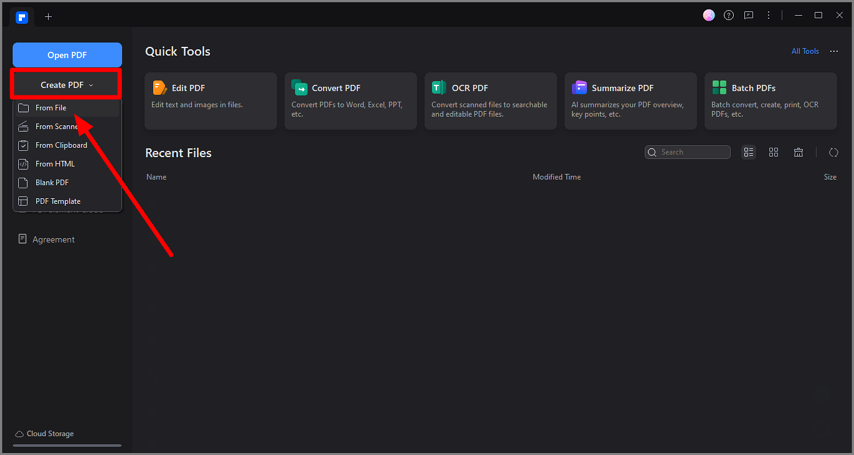
To begin with, download and install PDFelement on your computer and explore the main interface. Now, expand the "Create PDF" menu and select the “From File” option to import a WordPad file.
Step 2. Save Your PDF File to the Device
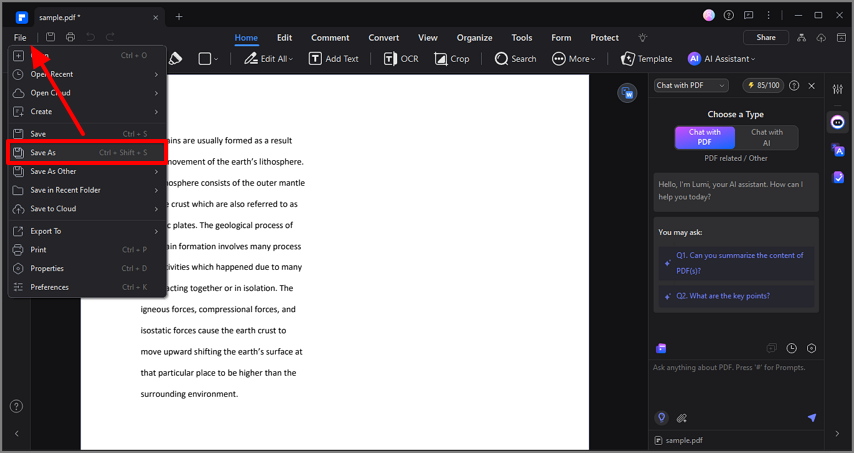
Once the file opens within PDFelement, go to "File" from the top left and click "Save As" to save the file as PDF into your desired folder.
Note: If you have multiple WordPad files to convert, PDFelement offers a batch conversion feature. Select "Batch Process," upload all the files, and convert them to PDF in a single step.
Method 2. Using the Microsoft Print to PDF Method
If you are looking for a built-in solution for less complex projects and don’t want to install any additional software, you can use the built-in Microsoft Print to PDF feature. This utility is available on Windows computers for users to instantly perform the desired tasks. This method is straightforward and effective for file conversions. Follow the guide below and explore how to use this method for WordPad to PDF conversions:
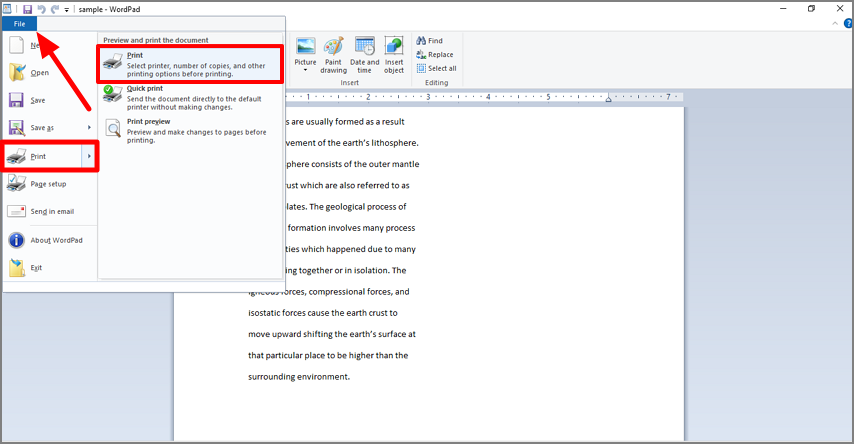
Step 1. Launch your WordPad document by double-clicking it or opening it from the WordPad application. Go to the "File" tab and press the "Print" option to access a new window. You can also press “Ctrl + P” on your keyboard to open the Print window.
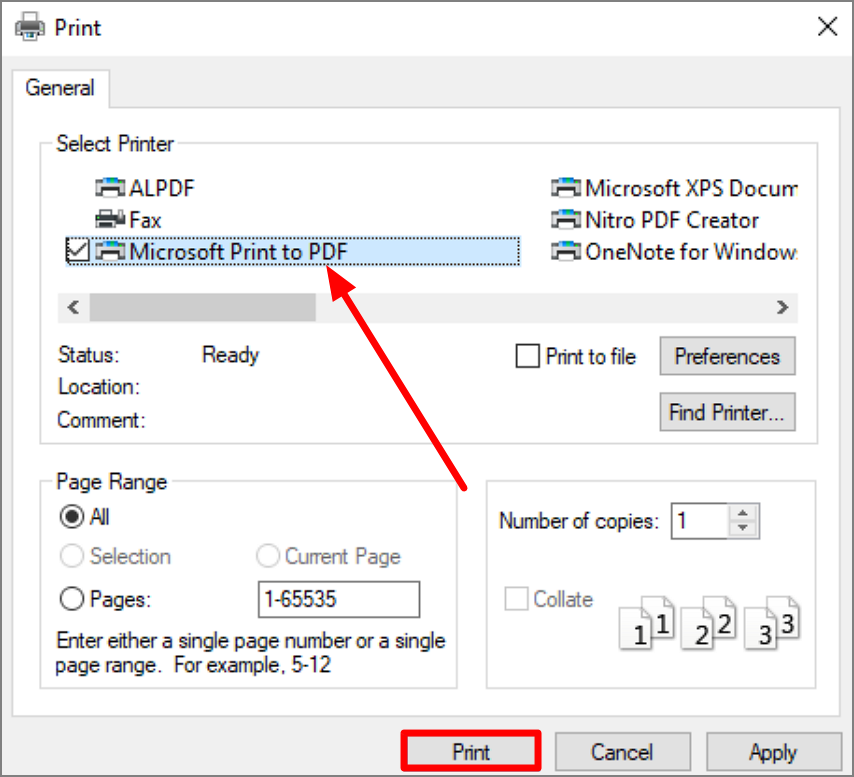
Step 2. Using the next window, select the “Microsoft Print to PDF” option and click “Print” to proceed with the process.
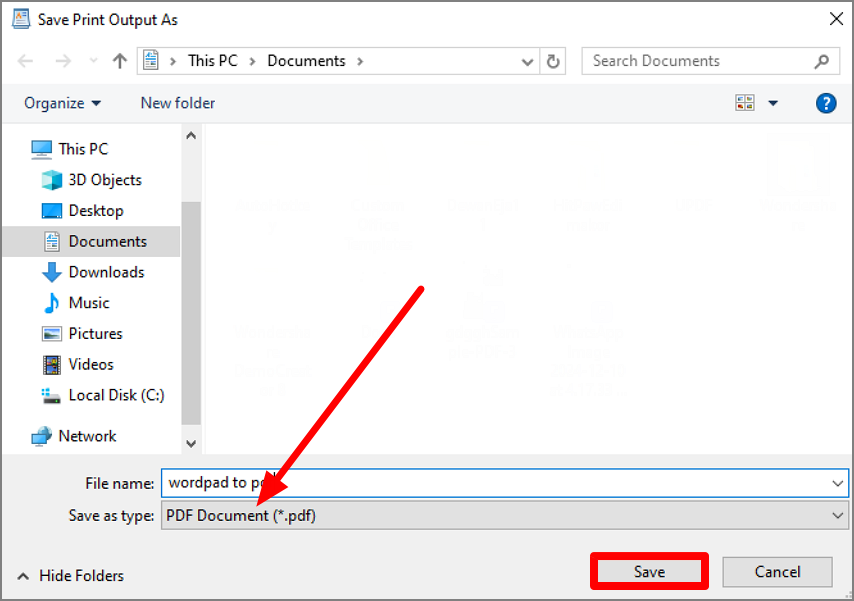
Step 3. In the following window, choose a destination folder, name your file, and click “Save” to complete the WordPad to PDF conversion.
Method 3. Using Online Conversion Tools
For people who are looking for a quick solution to change WordPad documents into PDF without comprehensive editing, online tools like HiPDF would be the right option. This online conversion facility supports all popular file formats for diverse conversion. The steps below feature a detailed guide on converting WordPad files to PDF using this platform:
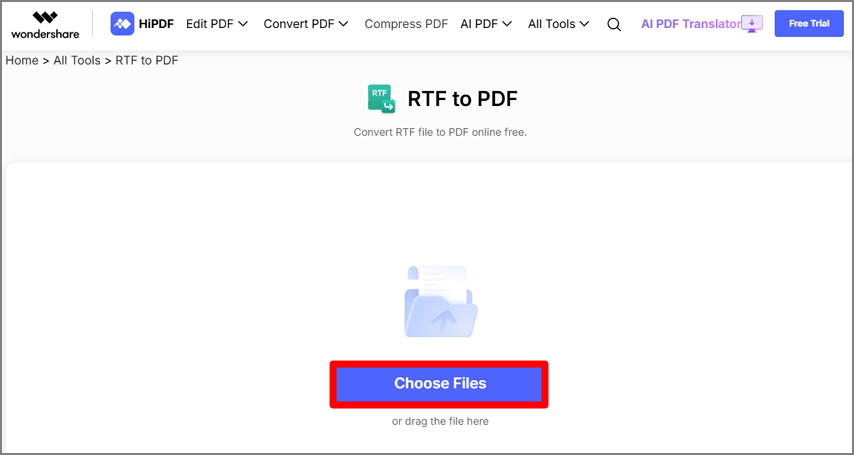
Step 1. Open a web browser, go to HiPDF, and open the RTF to PDF interface of this platform to start the process. Click "Choose Files" on the website's interface and upload the WordPad document from your computer.
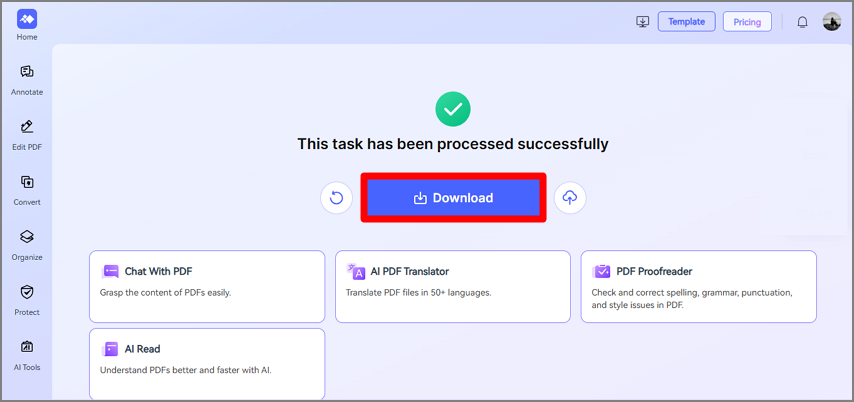
Step 2. Once the file is converted into PDF, a success message will appear on the screen. Click the "Download" button located within the interface to save your newly created PDF.
Method 4. Using Google Drive
Another method that offers an excellent feature for converting WordPad files to PDF via Google Drive. This method is perfect for users who prefer a cloud-based workflow. When the synced WordPad file is opened on Google Docs, you can edit it collaboratively using a link. To learn how to use this method for effective WordPad to PDF conversion, follow the steps below:
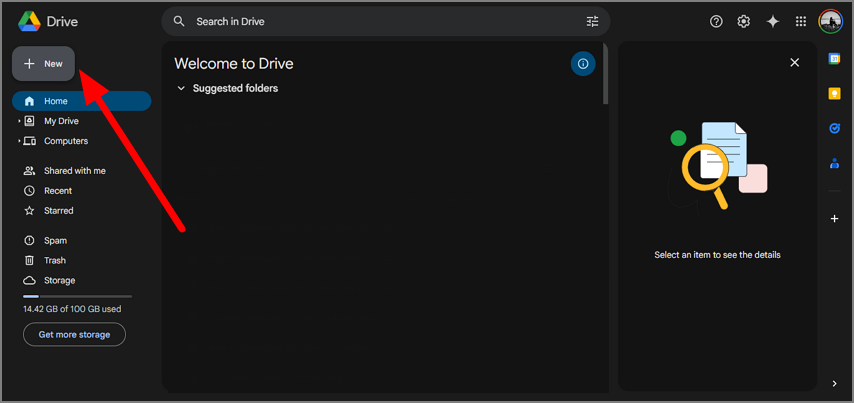
Step 1. To begin with, log in to your Google Drive account and upload the WordPad document using the “+ New” icon.
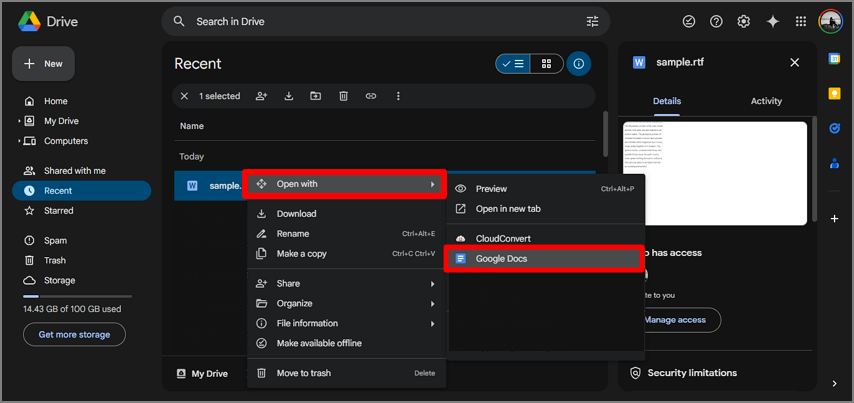
Step 2. Right-click the uploaded file, and select the "Open with," option from the menu. Here, choose "Google Docs" to open your WordPad file on Google Docs.
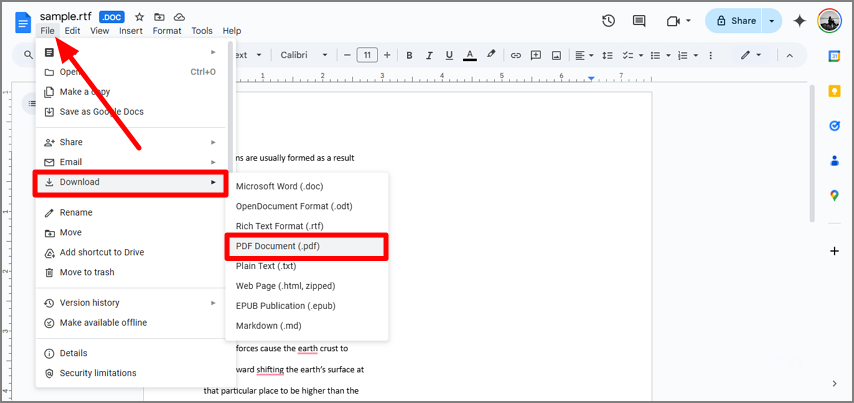
Step 3. Once the document opens, go to the "File" tab and hover over the "Download" option to select "PDF Document” to save the file to your desired location.
Method 5. Using LibreOffice for File Conversion
LibreOffice is a free alternative to traditional word processing tools, and it allows you to export WordPad files as PDFs seamlessly. It features the option of batch processing to streamline your workflow and convert multiple files at once. The following instructions should be followed if you need to convert a WordPad file into a PDF using LibreOffice on your desktop:
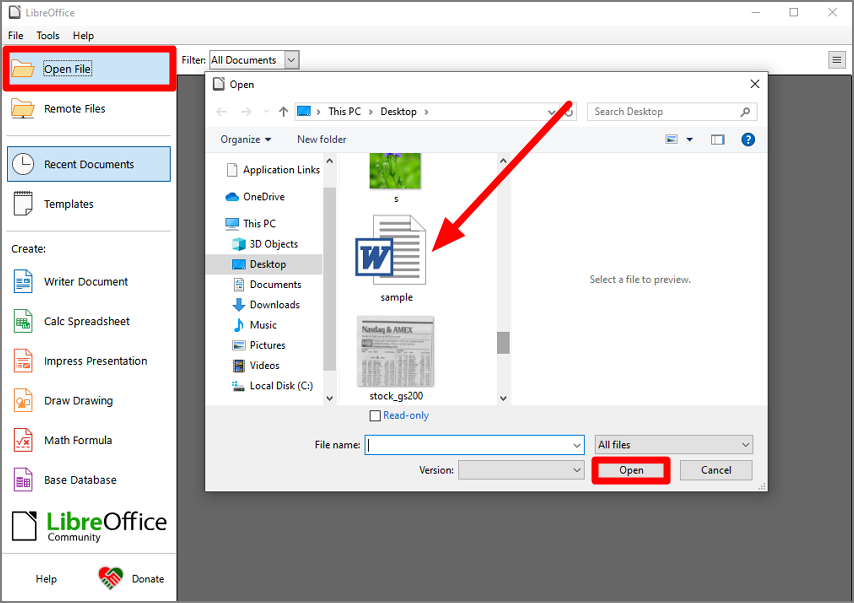
Step 1. Start the process by opening LibreOffice Writer on the PC and loading the WordPad document using the "Open File" button. Locate the file in your device storage and press “Open” to open the file within the tool.
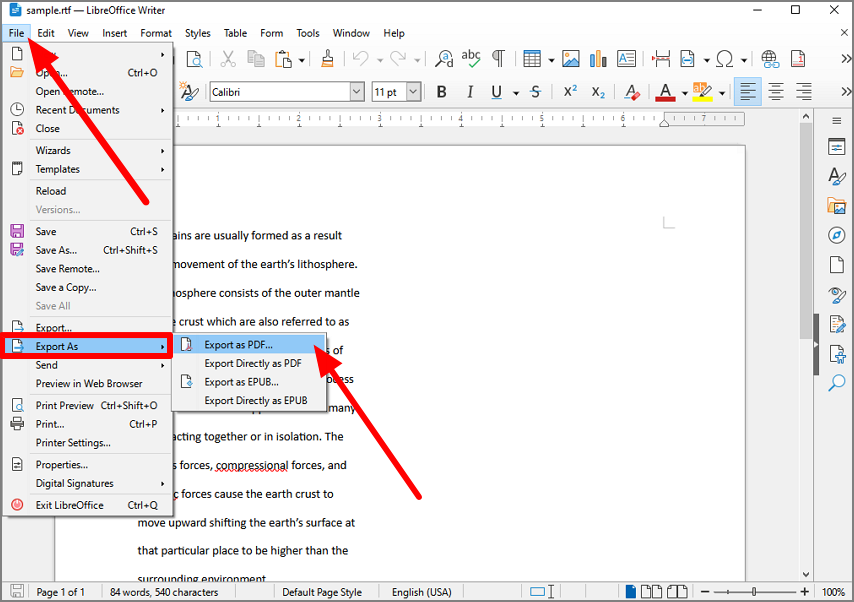
Step 2. Once the file is imported, click “File” to hover over the “Export As” option and select the “Export as PDF” button.
Choosing the Best Method for You
After exploring each method for converting a WordPad file into PDF, let us have a quick look at our findings:
Pros
PDFelement is the top choice for professionals needing advanced PDF editing and customization features.
Microsoft Print to PDF is perfect for basic conversion needs without additional software.
Google Drive works well for those who prefer cloud-based document management.
Disadvantage
Online Tools are quick and efficient for one-off tasks but should be avoided for sensitive data.
LibreOffice is a great free alternative for those who need additional customization options.
Conclusion
To sum up, converting WordPad files into PDF documents has lots of benefits, from size reduction to compatibility. This article explored the top 5 methods of converting a WordPad file into a PDF. After looking into the limitations of each method, PDFelement was concluded to be the most reliable tool. You can download the tool today and enjoy your document management experience with precise customizations.