
Backgrounds in PDFs can serve both functional and aesthetic purposes, but there are times when you need them removed. If you are rebranding or updating document formatting, knowing how to remove backgrounds from PDF files is an essential skill. However, there are many tools introduced now that make the process quick and straightforward.
This guide walks you through various effective methods to remove unwanted backgrounds from your document effortlessly.
Why Remove Backgrounds from PDF Documents?
While generating a professional document, backgrounds can interfere with the edit and readability. Provided below are the reasons why you need to remove the backdrop from your documents:
- Rebranding: You may need to quickly replace outdated backgrounds with new ones if your company updates its branding guidelines.
- Improved Readability: A cluttered or dark background can make text hard to read; hence, it is important to remove the background from your PDF file.
- Customizing Content: A clean slate allows for precise customization, whether for professional or personal use.
Different Methods to Remove Backgrounds from PDF Files
Having discussed the importance of backdrop removal, let us now have a look at different methods to remove them from PDFs:
Method 1. Removing Backgrounds Using Wondershare PDFelement
Wondershare PDFelement is a user-friendly yet powerful tool for effectively handling PDF files. It simplifies the process of removing backgrounds without compromising document quality. The dedicated “Background” feature allows users to add backdrops along with removing them. Moreover, you can update an already existing background from the file using this tool.
With PDFelement, users get the ability to manage and edit the document once the background has been removed. To learn how to use this tool for background removal, read the steps mentioned next:
Step 1. Open the PDF With Background in PDFelement
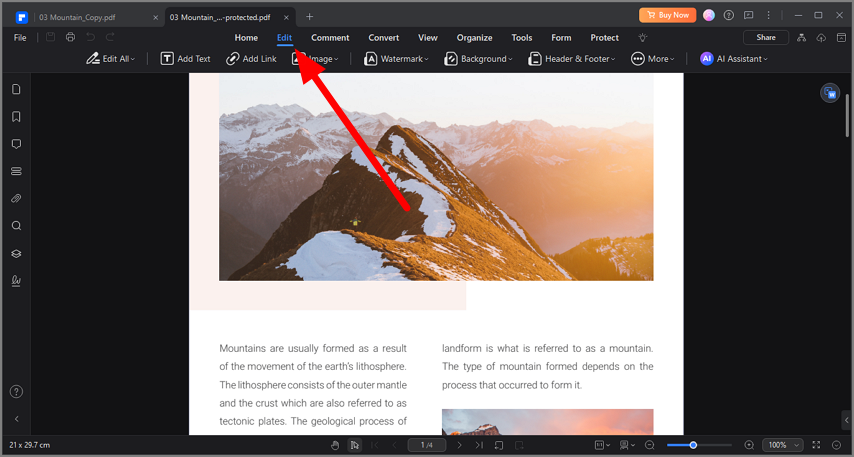
Launch PDFelement on your device and click the "+" button to upload your desired PDF. Once the file opens, click on the "Edit" tab at the toolbar of the interface.
Step 2. Delete The Background From PDF
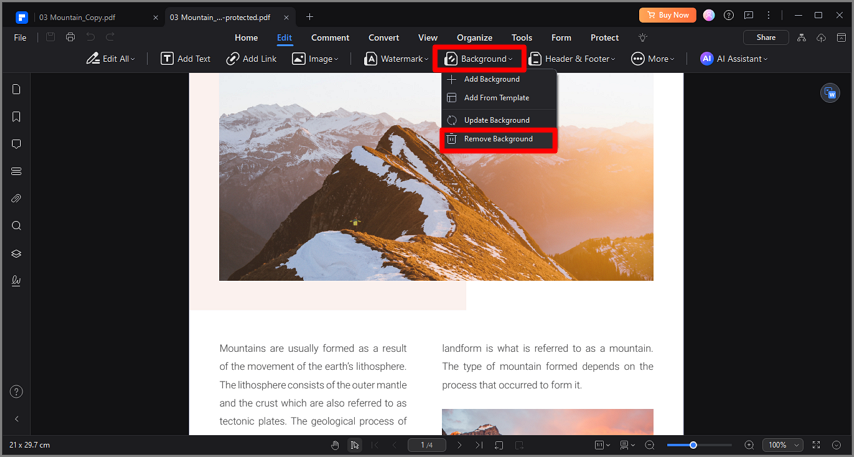
Under the "Edit" options, click "Background," then select "Remove Background" from the drop-down menu. A prompt will pop up asking for confirmation, following which the background will be removed instantly.
Benefits of PDFelement
- Ease of Use: It has an intuitive interface suitable for beginners and professionals alike.
- Efficiency: The tool removes backgrounds in a few clicks, saving you time and effort.
- Cross-Platform Access: PDFelement is available on Windows, Mac, iOS, and Android for cross-platform accessibility.
- Versatility: Beyond removing backgrounds, it supports editing, annotating, and converting PDFs.
Method 2. Removing Backgrounds Using Adobe Acrobat
Adobe Acrobat is one of the most well-known professional tools for managing PDFs. Its "Edit PDF" feature makes removing backgrounds a straightforward process. While users consider removing the background from their PDFs, they can edit and annotate them further. Provided below is the step-by-step guide on how to eliminate backdrop from PDF files with Adobe Acrobat:
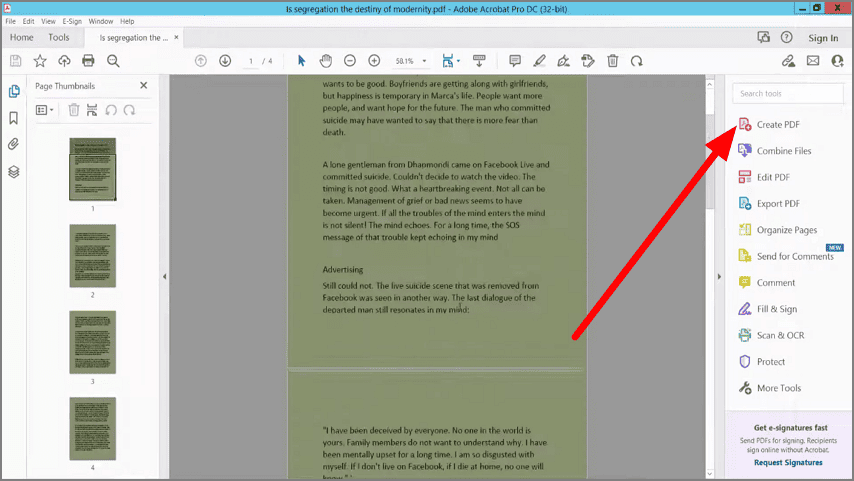
Step 1. Launch Adobe Acrobat and import your PDF across the platform. Access the toolbar located on the right side of the interface and click on the “Edit PDF” option.
Step 2. Next, locate the “More” option from the toolbar located above the page and click on the “Background” option. Next, press the “Remove” button to execute the backdrop removal process.
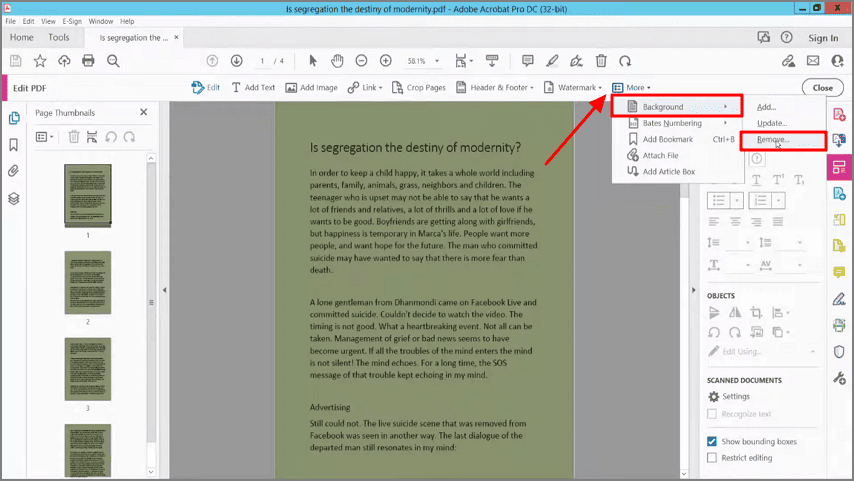
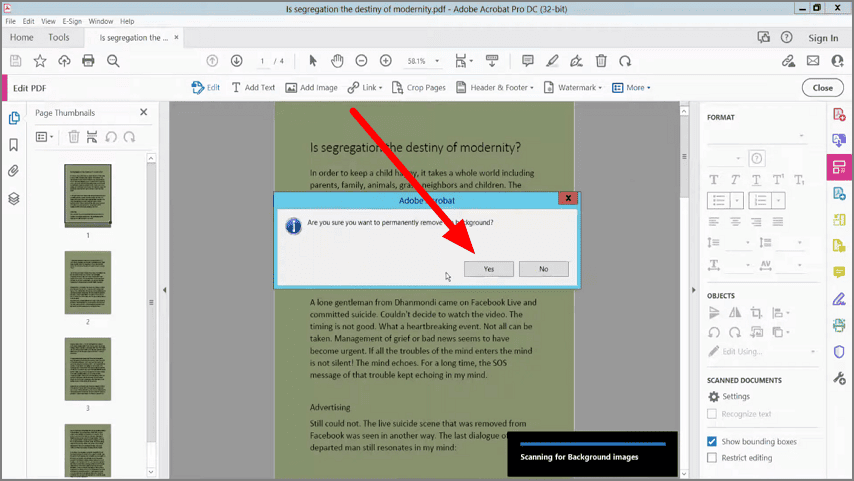
Step 3. Once you press “Remove,” a dialogue box will ask for your confirmation; press the “Yes” button to save the changes.
Method 3. Removing Backgrounds Using Online PDF Editors
For those who prefer not to download software, online PDF editors offer a quick and easy alternative. Tools such as pdfFiller allow users to upload their documents directly to the interface and eliminate unwanted backgrounds. To learn how to remove the backdrop from PDF, read the steps mentioned below:
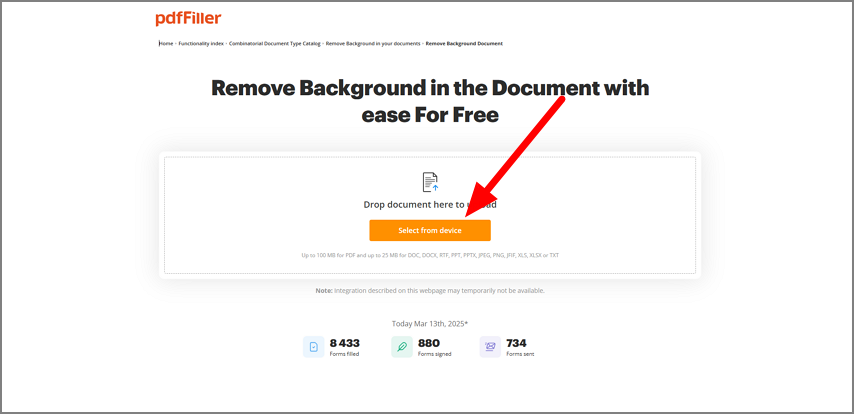
Step 1. Once you have accessed the background removal function of pdfFiller from its official website, upload your PDF using the “Select from Device” button.
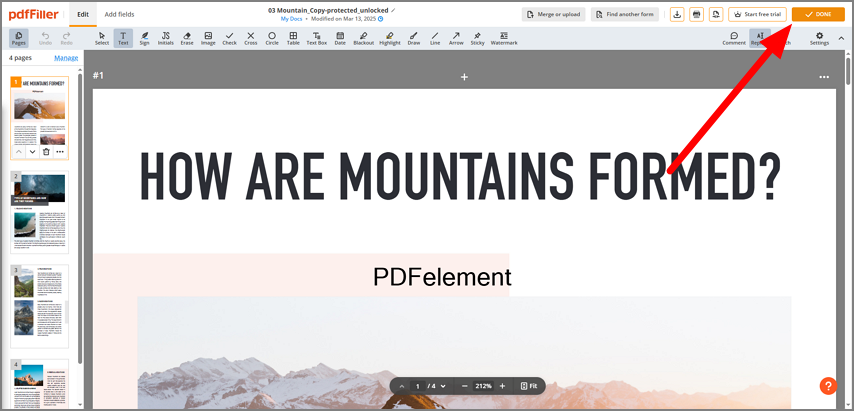
Step 2. The tool will instantly start processing the removal. Once done, review the PDF and head to the top-right corner of the interface to click the “Done” button that saves your document.
Pros
When you use an online tool for background removal, you do not require any installation.
The online tools are usually free for basic tasks such as editing, creating, and saving PDFs.
Cons
Limited functionalities are offered as compared to desktop tools.
File size restrictions and potential security risks with sensitive documents are associated.
Why Choose Wondershare PDFelement?
After reviewing the methods above, you may wonder which one to choose. While each has its benefits, PDFelement stands out for its combination of simplicity, efficiency, and robust features. Here is why it is the right choice when it comes to PDF background removal:
- Minimized Effort: No need for repetitive edits or retyping; you can remove background with just a few clicks to get the job done.
- Broad Compatibility: The platform works seamlessly across multiple platforms, which include Windows, Mac, iOS, and Android.
- Cost-Effective: It offers a free trial to get started, making it accessible for small businesses and personal use.
What’s more, PDFelement provides an all-in-one solution. Beyond background removal, it allows you to convert documents, add signatures, password-protect files, and even apply OCR for transforming scanned documents into editable formats.
Conclusion: Achieve a Clean Slate for Your PDFs
To conclude, removing backgrounds from PDF documents can feel like a daunting task without the right tools, but it doesn’t have to be anymore. With solutions like Wondershare PDFelement, Adobe Acrobat, and trusted online editors, you can easily make your edits while saving time and effort. For the most seamless experience, we recommend Wondershare PDFelement as it offers an instant solution for background removal.