
You might be running late for a meeting and have no time left for a presentation but need to make quick last-minute changes to the images in your Word document. There is no need to panic as Microsoft Word offers a comprehensive built-in technique to do so.
This blog will provide a step-by-step guide on how to edit images within Word and explore more advanced options, such as editing pictures in PDF files.
How to Edit a Picture in Word?
The process of editing an integrated picture within the Word document is pretty straightforward as it offers basic tools for adjustments. You can resize, crop, and apply different adjustments like brightness and contrast. While the platform is not as powerful as editing software, it is ideal for a few quick tweaks within the document. Below are the steps which will teach you how to edit a picture in MS Word:
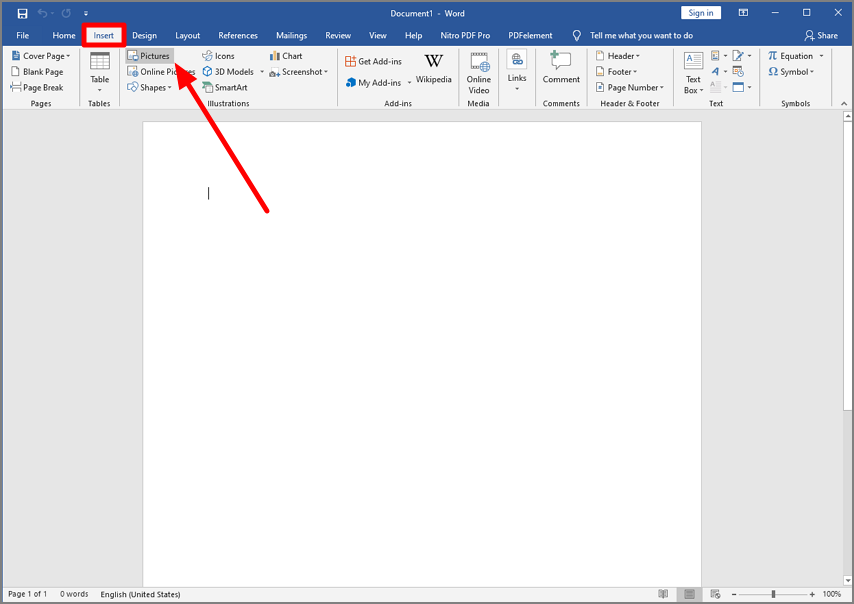
Step 1. Before you can edit a picture, you’ll need to add it to your document. Head to the main ribbon of the tool and access the “Insert” section. Next, locate the “Pictures” option to import video from your device’s storage.
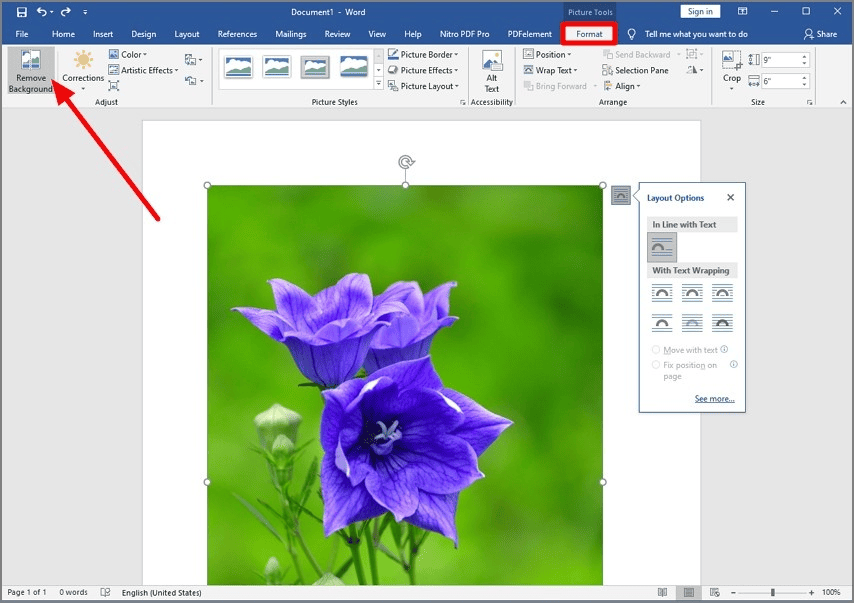
Step 2. Once the image is added, access the “Format” toolbar and locate the “Remove Background” option. The backdrop of the image will be instantly removed once you confirm the process.
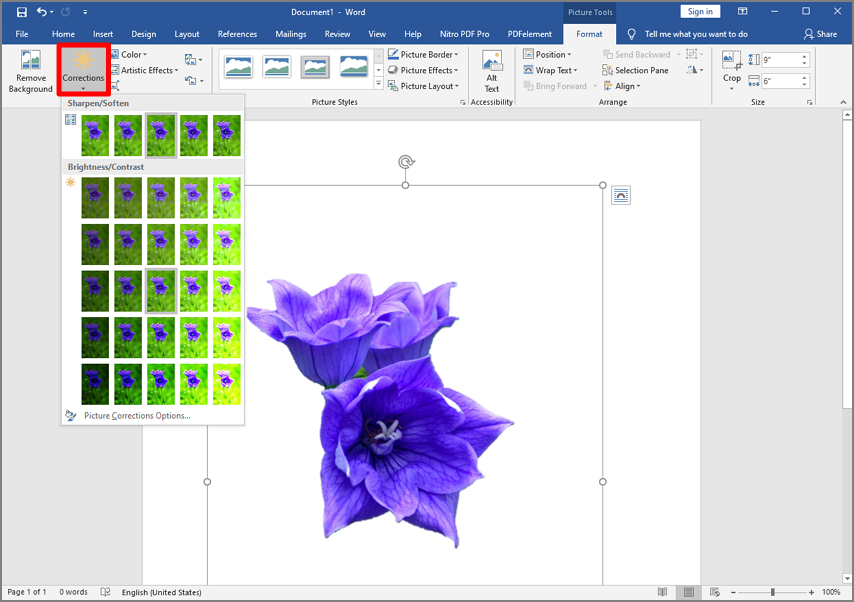
Step 3. Locate the “Corrections” option and select your favorite sharpness or brightness from the options provided. You can also change the picture style from the designated style section.
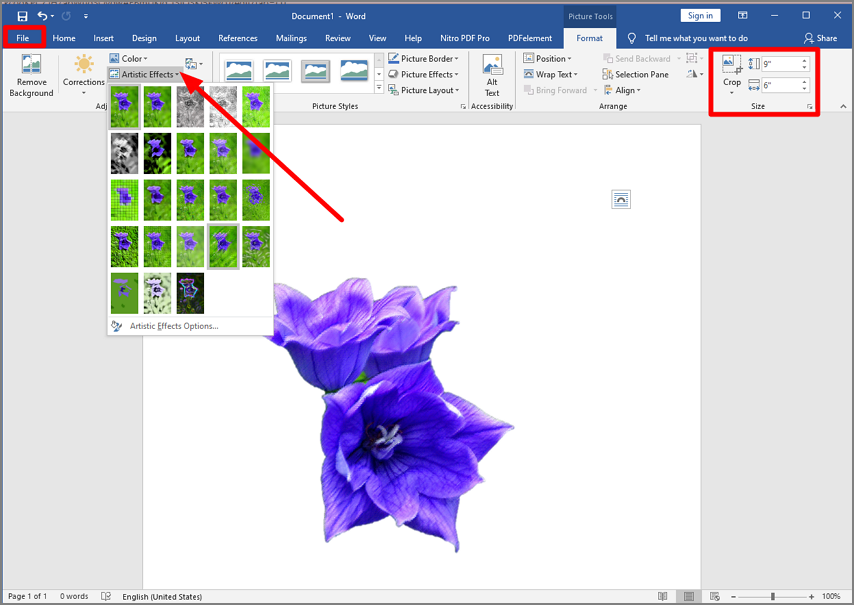
Step 4. Moving forward, access the “Artistic Effects” section and choose the effect for your image from the desired option. Moreover, remove the unwanted part of the picture using the “Crop” section. Once you are satisfied with the results, save the file heading to the “File” section.
Advantages of Working with PDFs
While Word is excellent for basic image editing, sometimes your document needs to be in a more robust, uniform format like PDF. This format has become the preferred document format for professional settings, and here’s why:
- Enhanced Security: PDFs are less susceptible to unauthorized edits. You can encrypt your files, set permissions, or add digital signatures to protect their integrity.
- Universal Compatibility: The beauty of PDFs is that they maintain their formatting across all devices and platforms, ensuring your work always looks polished.
- Compact File Size: PDFs compress large files without losing quality, making them ideal for sharing documents with graphics or images.
To fully utilize the benefits of PDF, we recommend using Wondershare PDFelement, a feature-rich, user-friendly tool perfect for editing, converting, and securing PDFs.
How to Edit a Picture in PDF Using Wondershare PDFelement
Besides creating and managing PDF documents efficiently, PDFelement provides the utility of editing integrated images within its interface. Users can crop, flip, and rotate to make the images in their document aligned with the text. Moreover, AI-powered photo enhancement features are also offered by the platform to give users better image quality. With PDFelement, you also get the ability to remove the unwanted background from the images in the PDF file.
With the intelligent image editing function, you can upscale the images of the document with multiple resolution options within this PDF editor. To learn how to edit photos in your document using PDFelement, read the steps provided next:
Step 1. Start by Importing the File and Accessing the Image Tool
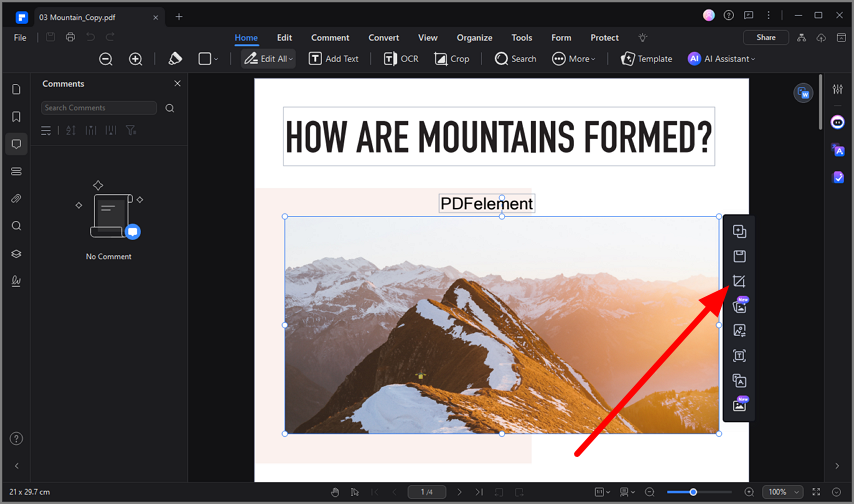
Once you have launched PDFelement and imported your document, locate the image within the document and click on it. This will enable a toolbar next to the picture; select the “Crop” icon to remove unwanted parts of the photo.
Step 2. Access the Properties Panel and Adjust Appearance
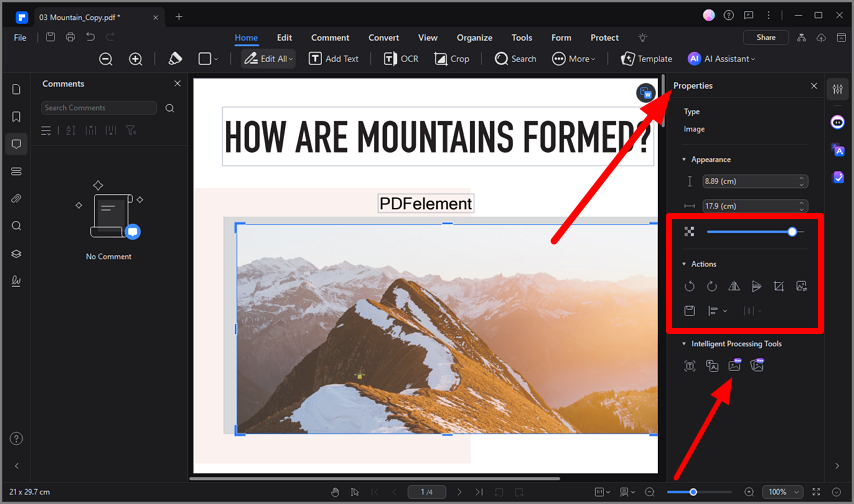
After cropping, access the “Properties” panel on the right side and choose your desired options, like flipping or rotating images according to your preferences. Moving forward, head to the bottom of the panel and select the “Intelligent Image Editing” icon.
Step 3. Select Upscale Function
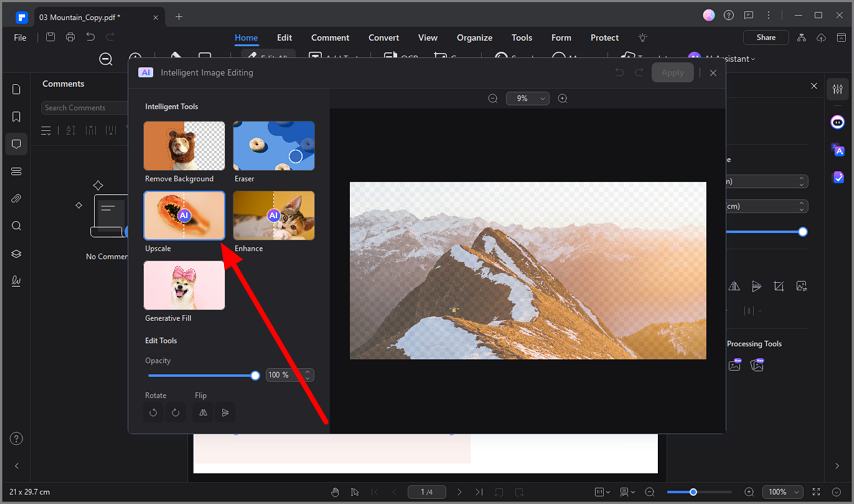
In the following window, choose the “Upscale” option from the different editing options provided and click on it to continue.
Step 4. Choose the Desired Upscaling Option
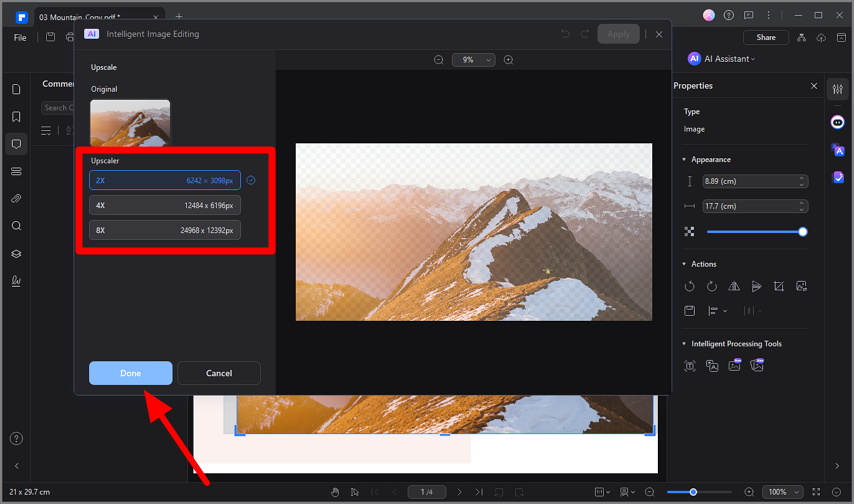
Select your upscaling resolution from different options provided by the tool and click on the “Done” button to execute the process. Once the images are upscaled and edited, save the video by heading to the “File” option and clicking on “Save as.”
Why You Should Try Wondershare PDFelement
PDFelement stands out as an essential tool for professionals who frequently work with PDFs. Mentioned below are some of the aspects that set it apart:
- Easily Edit PDFs: Modify or add text and images to your PDF documents with precision.
- Seamless Conversion: Convert PDFs into Word, Excel, or PowerPoint formats with original formatting intact.
- Secure Document Management: Protect sensitive information with encryption and digital signatures.
- OCR Technology: Unlock and edit the text in scanned PDFs to make them editable for text and different elements.
- Streamlined Digital Approvals: Sign and approve documents electronically for a faster workflow.
Conclusion: Master Both Word and PDF Editing
To conclude, being able to edit pictures in Word is a fundamental skill for creating professional, visually appealing documents. For those looking to take it further, mastering PDF editing adds an additional layer of versatility and professionalism to your work. However, if you want to enhance your PDF edits, try Wondershare PDFelement for free today and transform the way you manage your documents.